How to Stop Your iPhone Screen From Turning Off Automatically

By Trae Jacobs,

When you buy through our links, we may earn an affiliate commission.
Your iPhone screen turns off when the device stays inactive for a set amount of time. You can change your settings to keep the display active for as long as you need.
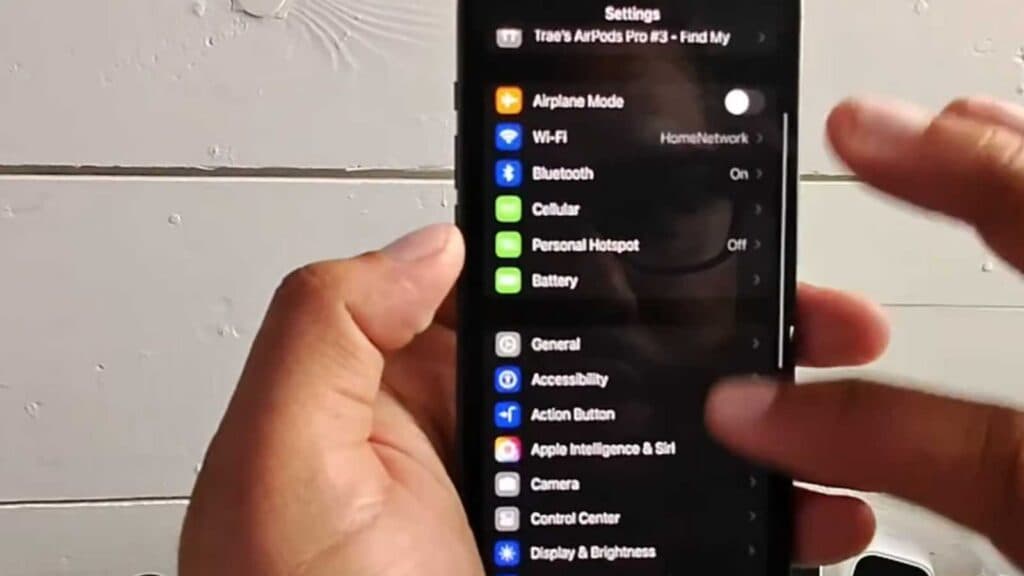
- Open your Settings app and go to Display & Brightness, then select Auto-Lock to change your setting to Never [0:23].
- Open Settings and go to Accessibility, scroll to the bottom, and enable Guided Access to keep the phone within a single app [0:51].
- Within your chosen app, triple-click the side button to start Guided Access, which locks the screen to that app and prevents the display from going to sleep [1:35].
- If you need to disable specific areas of the screen while in Guided Access, draw circles around them before you hit Start.
- To exit Guided Access, triple-click the side button again and enter your passcode.
Ninja Tip: If your Auto-Lock setting is greyed out and cannot be changed, turn off Low Power Mode by going to Settings > Battery.
If these settings fail to keep your screen on, you can restore your device to its original state through Settings > General > Transfer or Reset iPhone > Erase All Content and Settings.
Keep Reading



