How to Split Text into Multiple Columns in Google Sheets

By Trae Jacobs,

When you buy through our links, we may earn an affiliate commission.
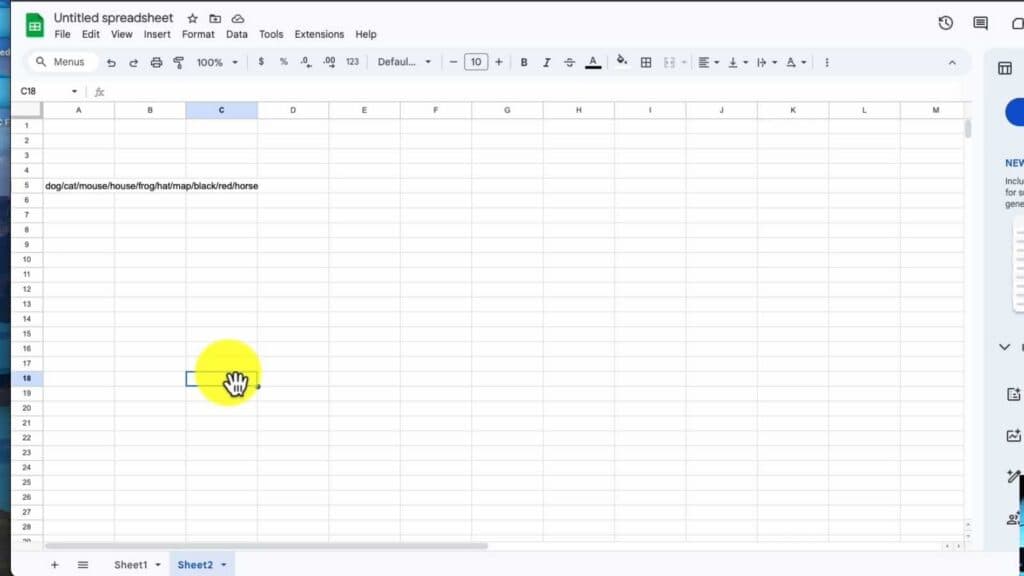
Your data is bunched up into a single cell, making it impossible to read or organize effectively. You can use the built-in split tool to separate this data into individual columns.
- Select the cell that contains your grouped data [0:37].
- Click on the Data menu at the top of the screen and select Split text to columns [0:39].
- If Google Sheets fails to detect the separator automatically, click the dropdown menu and select Custom to manually enter the character, like a forward slash or dash, that separates your data [0:53].
- Be aware that the split process will overwrite any existing data in the adjacent columns to the right.
- Select multiple cells at once if you need to apply this fix to a large data set.
Ninja Tip: If your data is formatted with consistent prefixes or suffixes, you can use the SPLIT function formula, such as =SPLIT(A1, "/"), to automatically update the columns whenever you change the source text.
For a clean slate, you can clear all sheet data by selecting all cells with Ctrl+A and pressing the backspace key.
Keep Reading



