How to Speed Up a Slow iPhone

By Trae Jacobs,

When you buy through our links, we may earn an affiliate commission.
Your iPhone is currently running slow. You can improve its performance by following these steps.
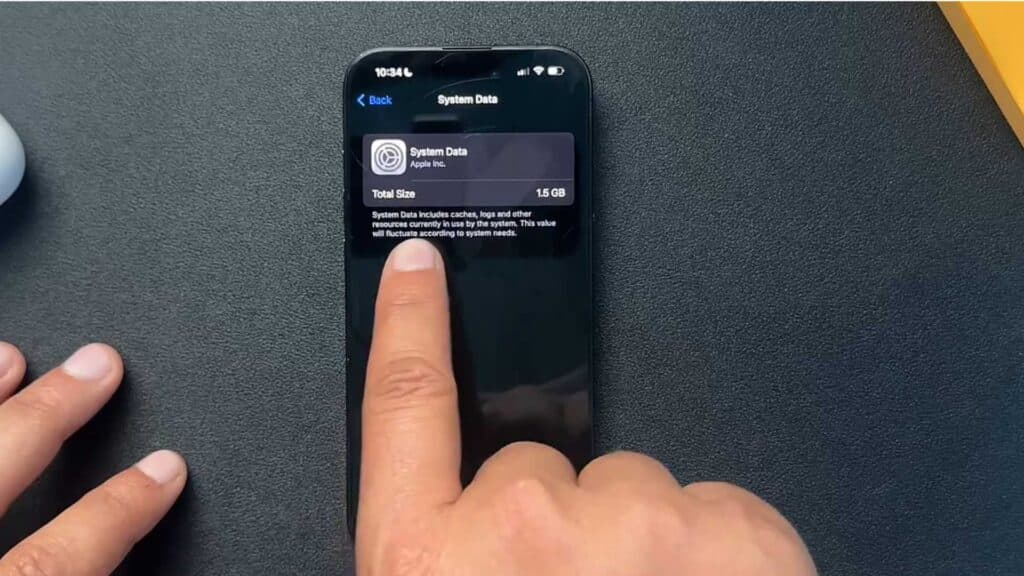
- Check your system storage by going to Settings, selecting General, and tapping iPhone Storage to see what is taking up space [1:03].
- Offload apps you don’t use by finding them in your iPhone Storage list and tapping the Offload App button [2:04].
- Clear your Safari cache by going to Settings, selecting Safari, tapping Advanced at the bottom, and opening Website Data to remove files [2:31].
- Force a restart on your phone if it still feels sluggish by pressing the volume up button, then the side button, and sliding the power off slider [4:21].
- Delete recently removed photos by checking the Recently Deleted album within the Photos app to free up remaining space.
Ninja Tip: Disable Background App Refresh in Settings > General > Background App Refresh to stop apps from using system resources when you aren’t using them, which significantly saves both battery and processing power.
If the phone remains slow, perform a factory reset by navigating to Settings > General > Transfer or Reset iPhone > Erase All Content and Settings.
Keep Reading



