How to Sign Out of the YouTube App on iPhone

By Trae Jacobs,

When you buy through our links, we may earn an affiliate commission.
You are signed into the YouTube app on your iPhone and want to remove your account. You can log out by following these simple steps.
- Open the YouTube app and tap your profile picture at the bottom right corner of the screen. [0:14]
- Tap the settings gear icon at the top of the menu to access your account options. [0:20]
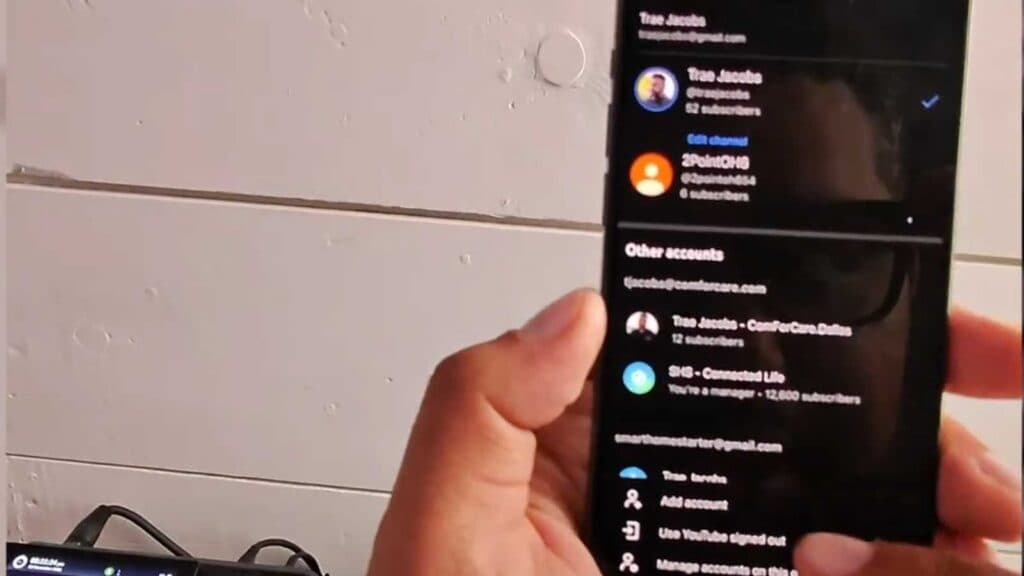
- Select the “Switch account” option from the list. [0:31]
- Tap “Use YouTube signed out” to remove your account access from the app.
Ninja Tip: If you want to delete your browsing history while logged out, go to your phone’s system Settings, find the YouTube app, and clear the cache or data if the option is available to refresh your local app state.
If you still encounter issues signing out, you can reset the app by going to Settings > General > iPhone Storage > YouTube > Delete App.
Keep Reading