How to Sign Out of the Amazon App on iPhone

By Trae Jacobs,

When you buy through our links, we may earn an affiliate commission.
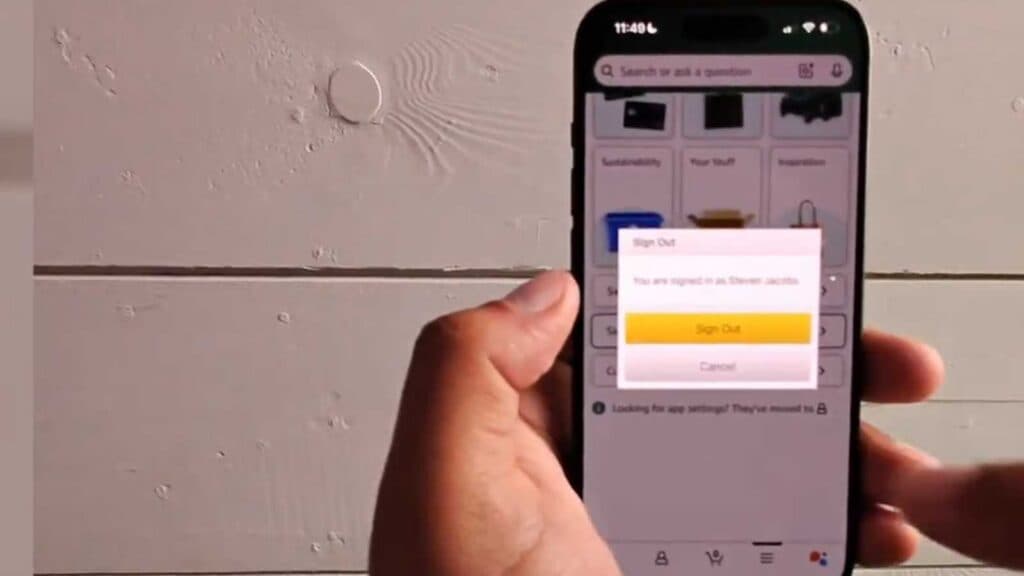
You are signed into your Amazon account on your iPhone and need to log out. You can sign out of your account by following these steps.
- Open the Amazon app on your iPhone [0:08].
- Tap the menu icon, represented by three horizontal lines, at the bottom of the screen [0:14].
- Scroll to the bottom of the menu page and tap “Sign out” [0:21].
- Tap confirm when the app asks you to verify your decision to sign out.
Ninja Tip: To prevent others from accessing your account if you share your device, enable Face ID or Touch ID within the Amazon app settings under Login & Security so the app requires biometric authentication to open.
If the app continues to show your account information, you can remove the app entirely by long-pressing the icon on your home screen and selecting Remove App > Delete App.
Keep Reading



