How to Sign Into Your Apple ID After iPhone Setup

By Trae Jacobs,

When you buy through our links, we may earn an affiliate commission.
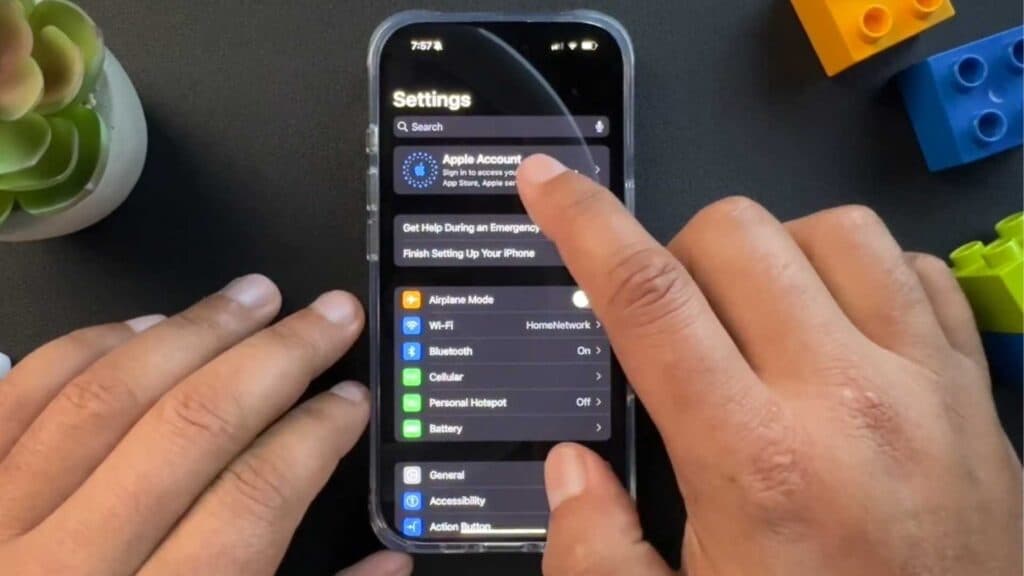
You skipped the Apple ID sign-in process during your initial iPhone setup and now you cannot access services like the App Store or iCloud. You can easily add your account now through your settings.
- Open the Settings app on your iPhone [0:26].
- Tap the Apple Account option located at the very top of the menu [0:31].
- Choose whether to sign in manually with your email and password or use another nearby device to complete the process [0:36].
- If you need to create a new account, tap the Don’t have an Apple account? button at the bottom and follow the on-screen prompts to register your information.
Ninja Tip: Enable two-factor authentication for your Apple ID by going to Settings > [Your Name] > Sign-In & Security to keep your account secure and prevent future login hurdles.
If you remain unable to sign in, perform a factory reset by navigating to Settings > General > Transfer or Reset iPhone > Erase All Content and Settings.
Keep Reading



