How to Share Your Location on iPhone

By Trae Jacobs,

When you buy through our links, we may earn an affiliate commission.
You are currently unable to let friends or family see your live location on your iPhone. You can fix this by adjusting a few simple settings.
- Enable the Share My Location feature by opening your Settings, tapping your Apple ID name, and navigating to Find My [0:16].
- Toggle the Share My Location switch to the on position [0:30].
- Open a message thread with the person you want to track, tap the plus sign, and select Location to send it directly [0:52].
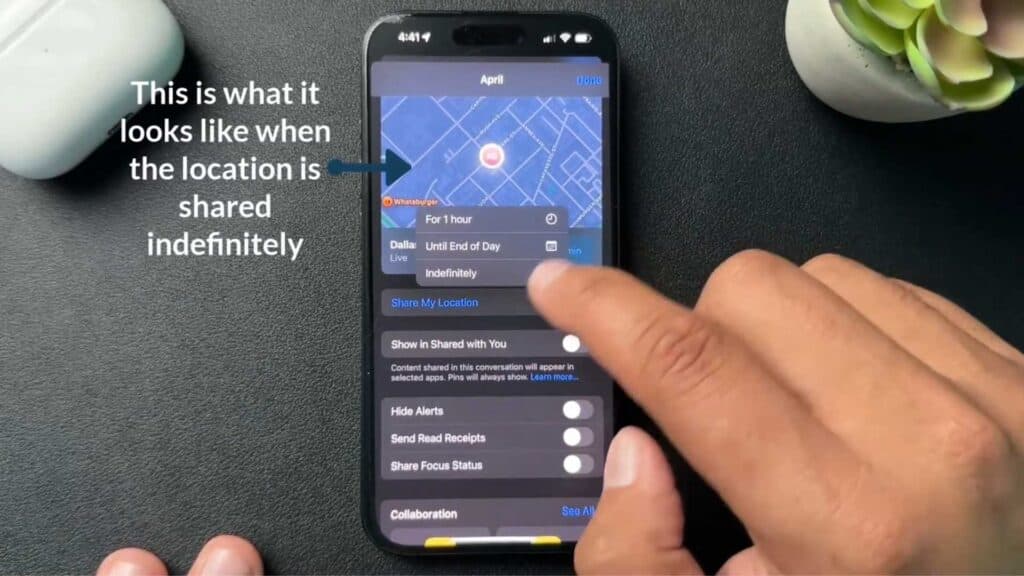
- Alternatively, open the Contacts app or tap the contact name at the top of a message thread, then choose Share My Location to pick your preferred duration.
Ninja Tip: Check your Privacy & Security settings under Location Services to ensure Find My is set to While Using or Always so the location sharing does not drop unexpectedly.
If these steps fail to work, you can reset your location services by going to Settings > General > Transfer or Reset iPhone > Reset > Reset Location & Privacy.
Keep Reading



