How to Share Your Location on iPhone

By Trae Jacobs,

When you buy through our links, we may earn an affiliate commission.
You need to share your iPhone location with someone else, but you are not sure how to set it up. Follow these steps to enable and send your real-time coordinates successfully.
- Open the Settings app on your iPhone and navigate to Privacy & Security to ensure your Location Services are turned on [0:06].
- Tap on Share My Location in that same menu to view or manage the contacts who can see your current position [0:36].
- Go into your Contacts app, select the person you want to share with, and tap Share My Location at the bottom of their profile [0:59].
- Choose whether to share your location for one hour, until the end of the day, or indefinitely [1:16].
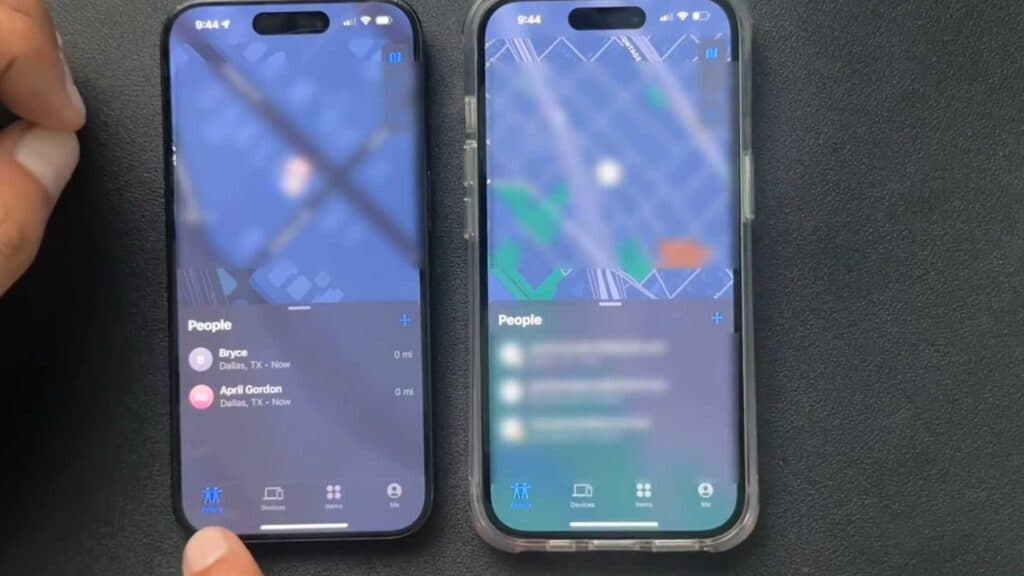
- Open the Find My app, tap the plus sign in the People section, and select Share My Location to send an invite to a specific contact.
Ninja Tip: You can enable Notify Me in the Find My app under a person’s name to receive an automatic alert whenever they arrive at or leave a specific location.
If these methods fail, you can reset your location privacy settings by going to Settings > General > Transfer or Reset iPhone > Reset > Reset Location & Privacy.
Keep Reading



