How to Share Your ChatGPT Conversations on Desktop and Mobile

By Trae Jacobs,

When you buy through our links, we may earn an affiliate commission.
You need to share a specific ChatGPT conversation with someone else. You can fix this by creating a shareable link through your account settings.
- Open the ChatGPT conversation you want to share on your desktop and click the Share button in the top right corner [0:15].
- Copy the generated link or choose to share the chat directly to platforms like LinkedIn, Facebook, or X [0:23].
- Navigate to your list of chats in the ChatGPT mobile app, then press and hold the specific conversation you want to share [1:14].
- Tap on the Share chat option from the menu that appears [1:19].
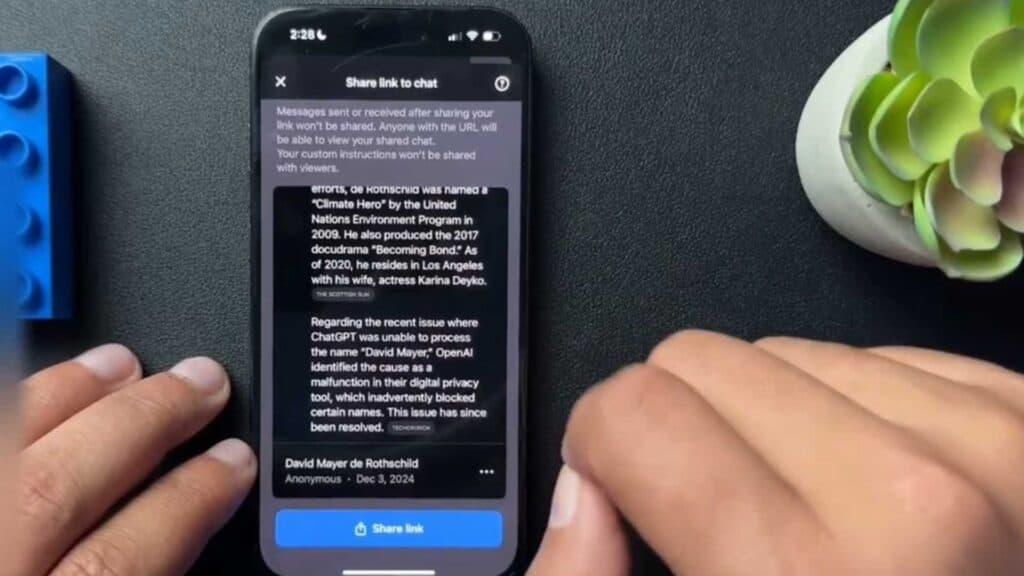
- Select the Share link button to create your public link and copy it to your clipboard.
Ninja Tip: Keep in mind that any future messages you add to the chat after creating the link will not automatically appear for the person you shared it with, so you will need to update the link if the conversation continues.
If you want to delete your shared links entirely, go to Settings > Data Controls > Shared Links to manage or remove them.
Keep Reading