How to Share Ring Doorbell and Camera Access with Other Users

By Trae Jacobs,

When you buy through our links, we may earn an affiliate commission.
Your family or friends cannot access your Ring cameras from their own devices. You can fix this by adding them as shared users through your Ring account settings.
- Open the Ring app, go to the side menu, and select Settings followed by User Permissions. [0:24]
- Tap Add User or Pet at the bottom of the screen. [0:34]
- Enter the email address of the person you want to invite and select which cameras they should be able to view. [0:42]
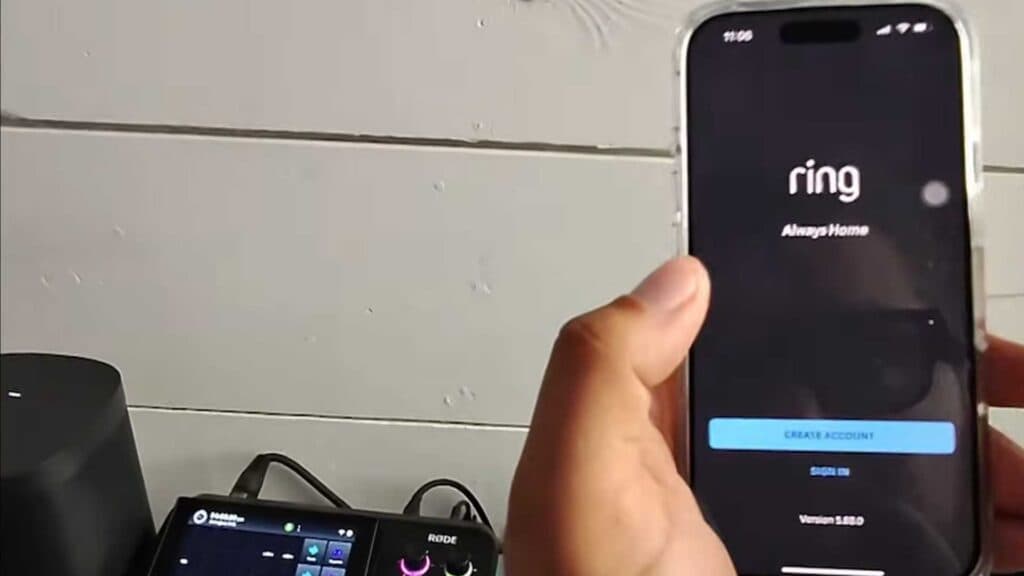
- Once the invite is sent, have the recipient create a Ring account using that same email address. [1:37]
- After they sign in, have them open the email invitation and click Manage the Request to accept the invitation. [3:11]
- Have the user close the Ring app and reopen it to see the cameras they have been granted access to.
Ninja Tip: If a shared user is having trouble seeing the devices, ensure they are fully logged into the Ring app with the exact email address that received the invite; mismatched accounts are the most frequent cause of access errors.
For persistent connection issues, you can remove and re-add the user under Settings > User Permissions > [Select User] > Remove User.
Keep Reading



