How to Set App Time Limits on iPhone

By Trae Jacobs,

When you buy through our links, we may earn an affiliate commission.
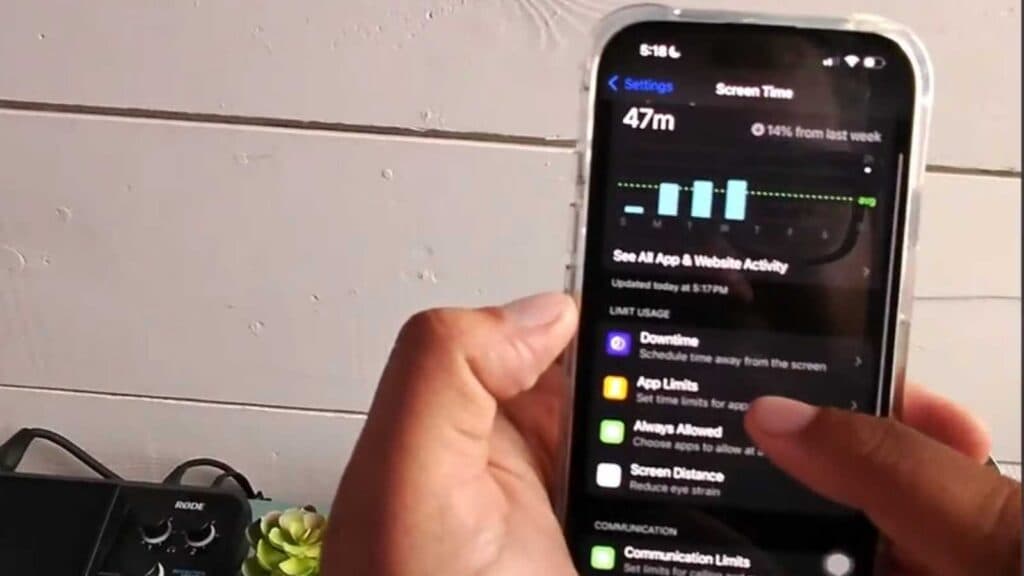
You are spending too much time on specific apps and want to restrict your daily usage. You can manage this by setting up limits directly in your iPhone Screen Time settings.
- Open the Settings app on your iPhone and tap on Screen Time [0:22].
- Select “App Limits” to view your current restrictions or create a new one [0:26].
- Tap “Add Limit” and choose the app categories or specific apps you want to restrict [0:39].
- Hit “Next,” then set the amount of time you want to allow for those apps each day [1:08].
- Use the “Customize Days” option if you want to set different time limits for the weekends [1:20].
- Confirm your settings by tapping “Add” to activate the new limit.
Ninja Tip: You can set a Screen Time passcode by going to Settings > Screen Time > Use Screen Time Passcode so that others cannot easily change or ignore the limits you have set.
If you need to wipe all your configurations, go to Settings > Screen Time > Turn Off Screen Time.
Keep Reading


