How to Set a Sleep Timer and Auto-Off on Your Samsung Smart TV

By Trae Jacobs,

When you buy through our links, we may earn an affiliate commission.
Your Samsung TV stays on indefinitely when you are not using it. You can prevent this by setting a sleep timer or an automatic power-off schedule.
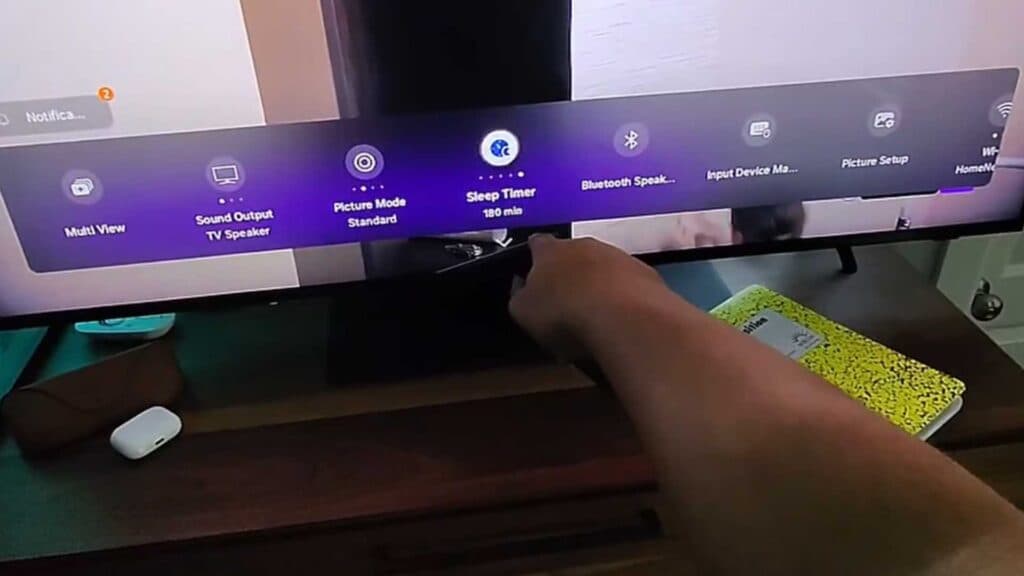
- To set a one-time sleep timer, open your settings, find the sleep timer option along the bottom, and select your preferred duration to have the TV turn off automatically [0:13].
- To create a recurring schedule, select the “off timer” option in the settings menu and choose the specific time you want the TV to turn off every night [0:38].
- To have the TV shut off when it detects no activity, go to All Settings, navigate to General and Privacy, select Power and Energy Saving, and then adjust the Auto Power Off timer [1:34].
Ninja Tip: If you own an OLED model, make sure to enable “Pixel Shift” and set “Adjust Logo Brightness” to High under the Panel Care menu to prevent permanent image burn-in.
If you encounter persistent issues with these settings, you can perform a full factory reset by going to Settings > General & Privacy > Reset.
Keep Reading



