How to Set a Custom Song as Your iPhone Alarm

By Trae Jacobs,

When you buy through our links, we may earn an affiliate commission.
You want to wake up to a specific song instead of the default alarm tones on your iPhone. You can easily set your own music as an alarm sound using the Clock app.
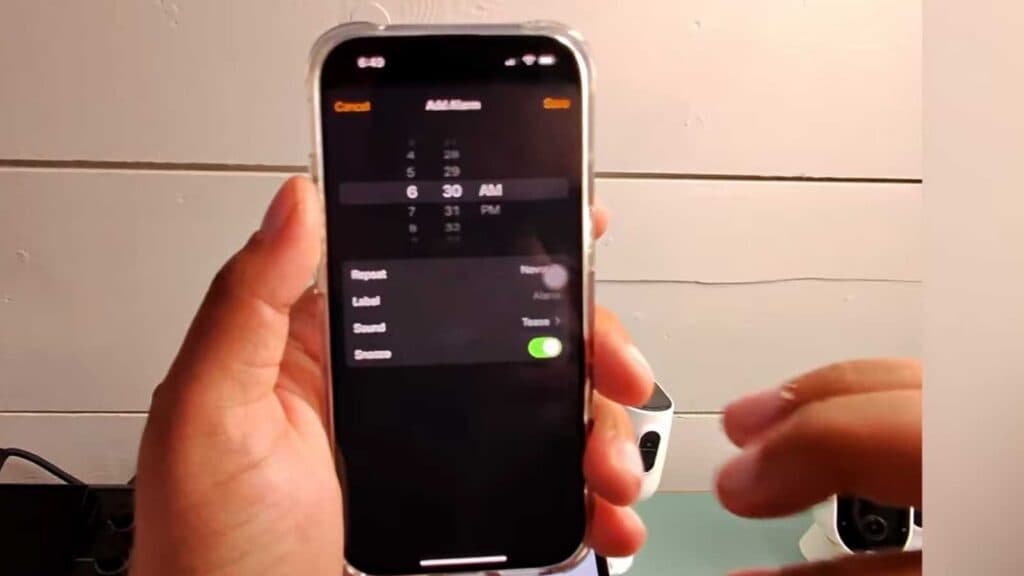
- Open the Clock app on your iPhone and tap the Alarm tab to create a new alarm or select an existing one to edit it. [0:06]
- Tap the “Sound” section to view your available alert options. [0:23]
- Select your preferred song from your downloaded iTunes or Apple Music library. [0:30]
- Tap the back button and then hit Save to apply your new alarm sound.
Ninja Tip: If you want to use a specific part of a song rather than the beginning, use the GarageBand app to trim the track to your preferred 30-second clip and save it as a custom ringtone in your sound settings.
If you encounter persistent issues with your audio settings, perform a reset via Settings > General > Transfer or Reset iPhone > Reset > Reset All Settings.
Keep Reading



