How to Send Voice Notes on iPhone

By Trae Jacobs,

When you buy through our links, we may earn an affiliate commission.
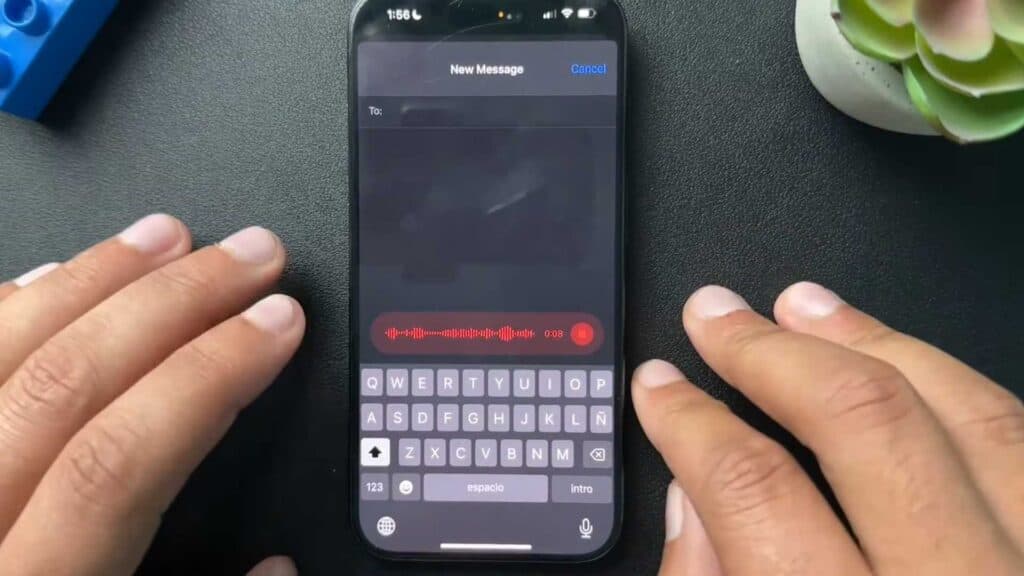
You need to send a voice message from your iPhone but aren’t sure how to navigate the interface. This guide shows you the steps to record and send your audio quickly.
- Open the Messages app and select the conversation where you want to send a voice note [0:07].
- Tap the plus icon located next to the text field to open the side menu [0:17].
- Select the audio option from the list to start recording your message automatically [0:22].
- Tap the stop icon once you have finished your recording [0:35].
- Press the play button if you want to review your audio before sending it [0:38].
- Tap the arrow icon to send the message to your recipient.
Ninja Tip: You can quickly send a voice note without opening the menu by long-pressing the audio icon in the Messages bar if your specific iOS version supports the shortcut.
If audio messages fail to send, verify your settings via Settings > Messages > Audio Messages.
Keep Reading



