How to Screen Record on iPhone Without an App

By Trae Jacobs,

When you buy through our links, we may earn an affiliate commission.
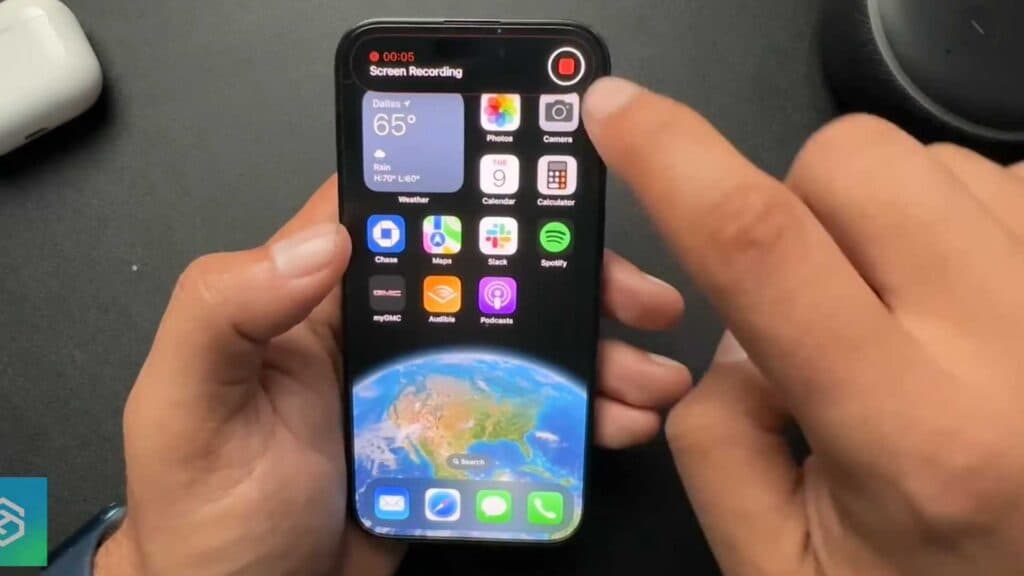
You need to record your iPhone screen but the option is missing from your Control Center. You can add this functionality in just a few steps.
- Open your Control Center by sliding down from the upper right corner of your screen [0:08].
- Tap the record icon, which looks like a circle inside another circle, to start your recording [0:18].
- Stop your recording by tapping the bar at the top of your screen and selecting stop.
- Go to Settings, select Control Center, and scroll down to the More Controls section [1:02].
- Find the Screen Recording option and tap the plus sign to add it to your included controls.
Ninja Tip: You can include your microphone audio in the recording by long-pressing the record icon in the Control Center and toggling the Microphone button to on.
If these steps do not resolve the issue, you can reset all your settings by going to Settings > General > Transfer or Reset iPhone > Reset > Reset All Settings.
Keep Reading



