How to Screen Record on an iPhone

By Trae Jacobs,

When you buy through our links, we may earn an affiliate commission.
Your iPhone screen is not currently recording. You can enable this feature in your Control Center in a few minutes.
- Swipe down from the top right of your screen to open your Control Center [0:12].
- Tap the plus icon in the top left corner if you do not see the screen recording button [0:29].
- Scroll to the bottom to find Screen Recording, then tap the plus icon to add it to your active controls [0:36].
- Tap outside the menu area to close your settings [0:56].
- Press the new circular recording button in your Control Center to start your capture [1:02].
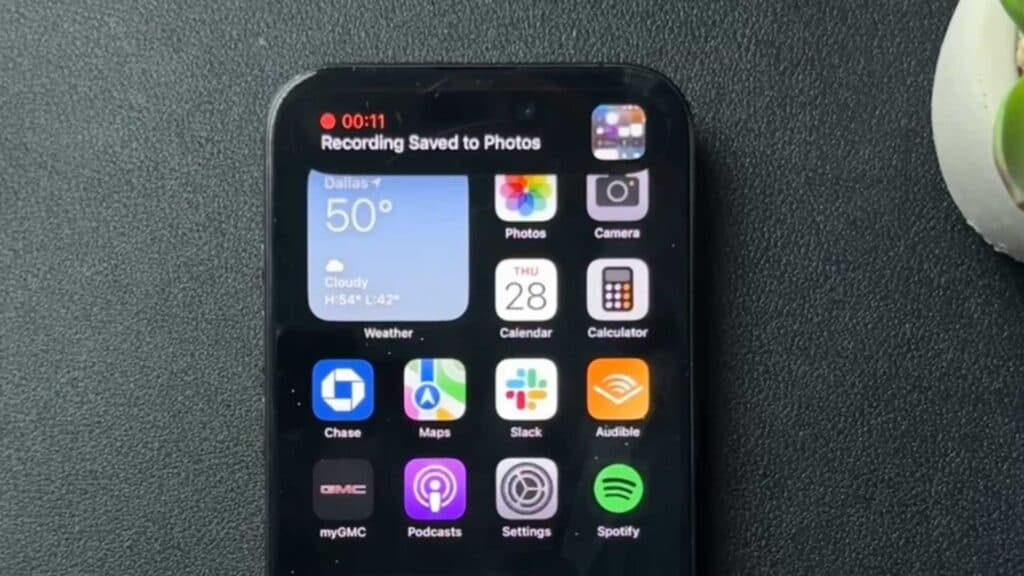
- Tap the red status ribbon at the top of your screen to stop the recording and save the video file to your Photos app.
Ninja Tip: You can capture your microphone audio while recording by long-pressing the screen record button in the Control Center and toggling the Microphone icon to On.
If the recording feature still does not work, perform a Reset All Settings via Settings > General > Transfer or Reset iPhone > Reset > Reset All Settings.
Keep Reading



