How to Schedule Text Messages on iPhone (iOS 18)

By Trae Jacobs,

When you buy through our links, we may earn an affiliate commission.
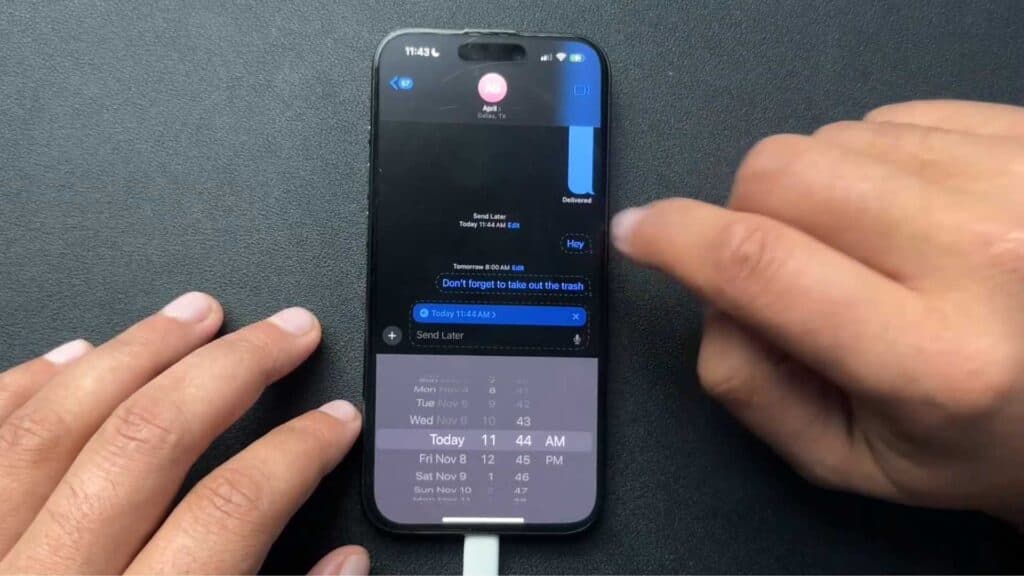
You need to send a text later but don’t know how to automate it on your iPhone. You can easily schedule your messages by updating to iOS 18 and using the built-in Send Later feature.
- Open your Settings app, tap General, and select Software Update to ensure your device is running iOS 18 [0:17].
- Open your Messages app and tap on the conversation thread where you want to send your message [0:55].
- Type out the text you want to send [0:58].
- Tap the plus (+) button next to the text field and select Send Later [1:09].
- Adjust the date and time to when you want the message to be delivered, then tap the send button [1:17].
Ninja Tip: If you need to change or cancel a message after scheduling it, just tap the Edit button located directly above the scheduled text in your chat thread. This allows you to quickly adjust the delivery time or delete the message entirely if your plans change.
If the Send Later option does not appear in your menu, try a force restart by pressing and releasing the volume up button, then the volume down button, and holding the side button until the Apple logo appears.
Keep Reading



