How to Schedule Instagram Direct Messages

By Trae Jacobs,

When you buy through our links, we may earn an affiliate commission.
You currently have no option to schedule messages on your Instagram account. You can fix this by using a personal account, as this feature is unavailable on professional accounts.
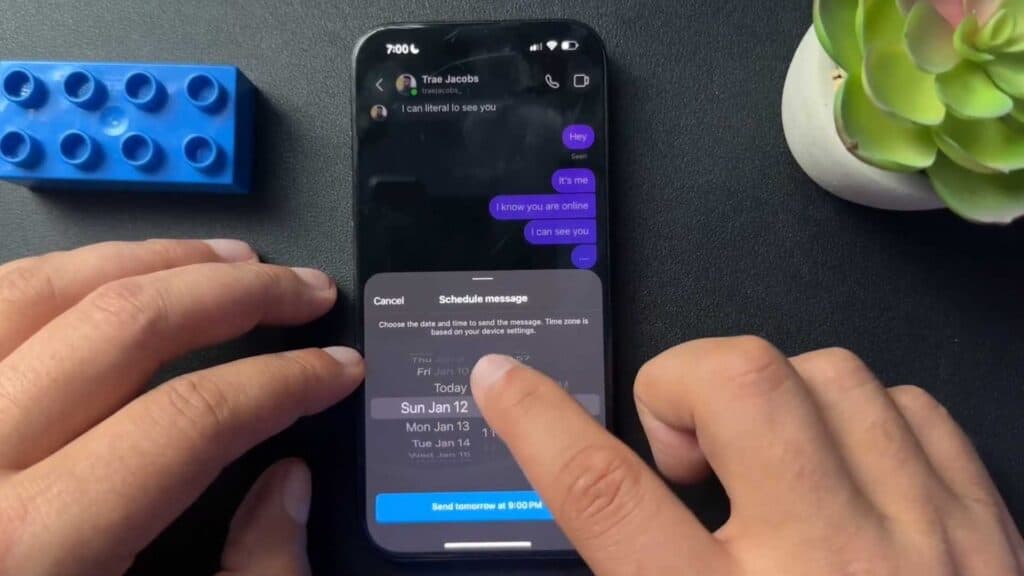
- Open your Instagram messages and type the text you want to send [0:28].
- Press and hold the send button to open the hidden scheduling module [0:37].
- Select the date and time you want the message to be delivered [0:44].
- If you need to change or cancel your scheduled message, long-press the message to access the delete, copy, or send-now options.
Ninja Tip: If you absolutely need to schedule content on a professional account, consider using the Meta Business Suite desktop dashboard to schedule posts and messages, as Instagram’s native mobile app remains restricted for professional profiles.
If the scheduling menu does not appear, verify your account type by navigating to Settings > Account type and tools > Switch to personal account.
Keep Reading



