How to Schedule Emails in Gmail

By Trae Jacobs,

When you buy through our links, we may earn an affiliate commission.
You need to send an email at a specific time when you won’t be at your computer. You can set your messages to send automatically later using the built-in scheduling feature in Gmail.
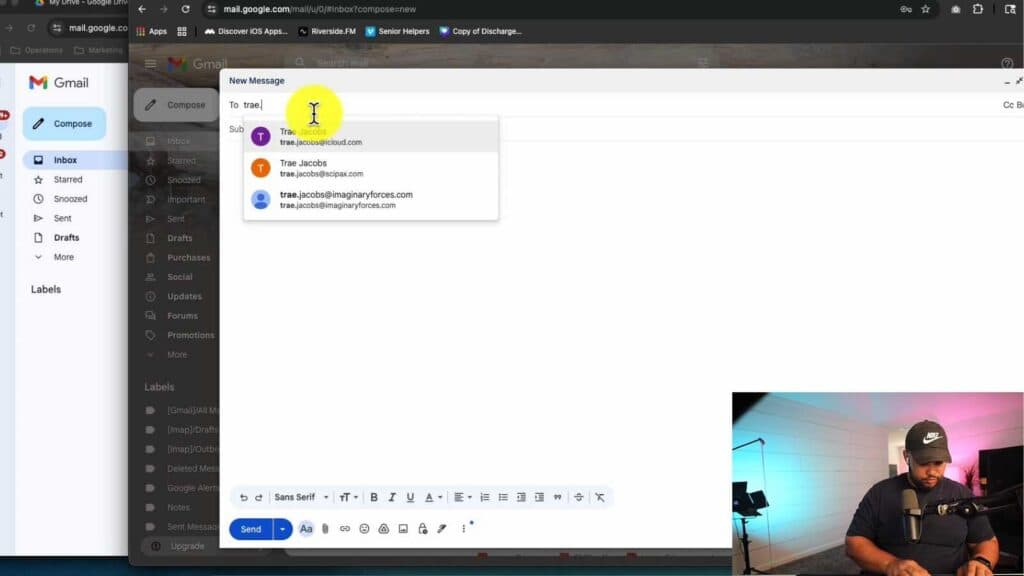
- Go to mail.google.com and click the Compose button to open a new message window. [0:26]
- Enter your recipient, subject line, and the body of your email as you normally would. [0:38]
- Click the arrow next to the Send button to open more options and select Schedule send. [0:47]
- Choose one of the suggested times or select your own specific date and time, then click Schedule send to finalize your request.
Ninja Tip: You can view, edit, or cancel your pending messages at any time by clicking on the Scheduled folder located in the left-hand sidebar of your Gmail inbox.
If you are unable to access your scheduled emails, navigate to Settings > Accounts and Import > Change account settings to ensure your Gmail permissions are properly configured.
Keep Reading



