How to Scan Documents Using Your iPhone

By Trae Jacobs,
When you buy through our links, we may earn an affiliate commission.
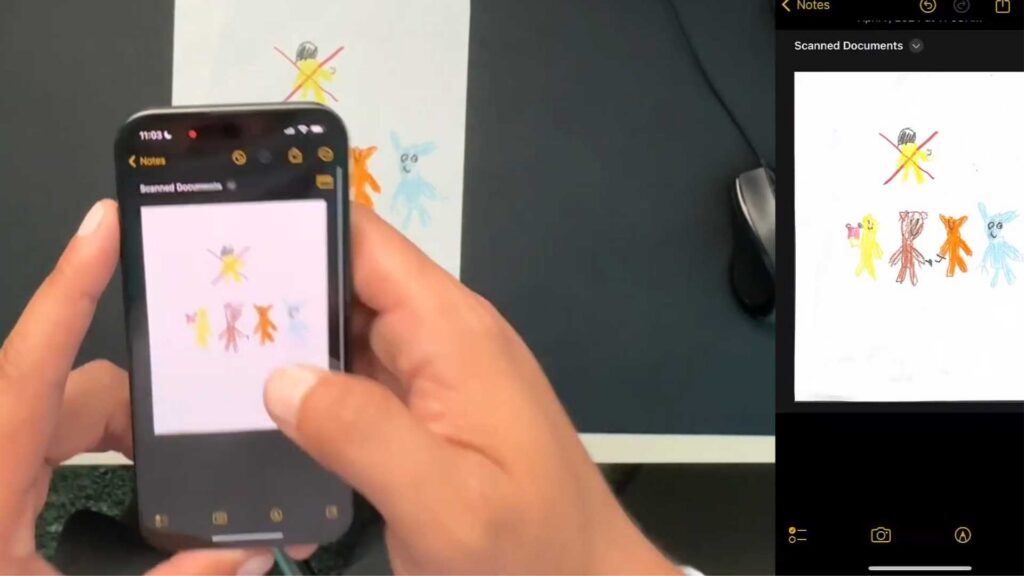
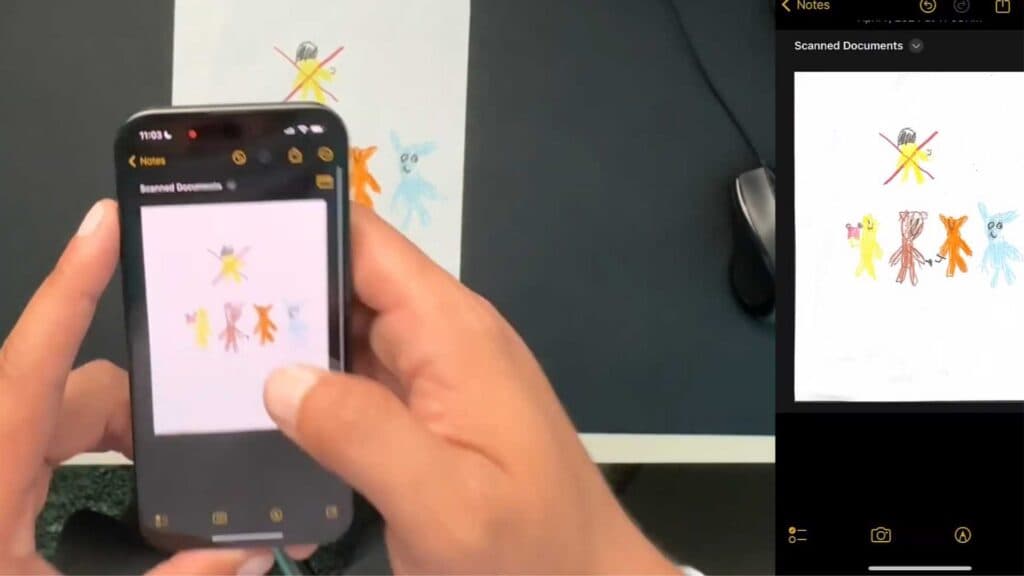
You need to get a paper document into a digital format using only your phone. You can complete this scan quickly using the built-in Notes app.
- Open the Notes app on your iPhone and create a new note [0:10].
- Tap the camera icon and select the Scan Documents option [0:23].
- Point your camera at the document and wait for the phone to automatically capture the image [0:31].
- Review the scan, hit save, and then tap the share button to send your document via email, text, or AirDrop.
Ninja Tip: If your scan looks blurry, tap the color filter icon (three overlapping circles) at the top of the scanning screen and switch to Grayscale or Black & White mode for much sharper text.
If the camera fails to trigger, go to Settings > General > Transfer or Reset iPhone > Reset > Reset All Settings.
Keep Reading



