How to Scan and Copy Documents Using an HP DeskJet Printer

By Trae Jacobs,

When you buy through our links, we may earn an affiliate commission.
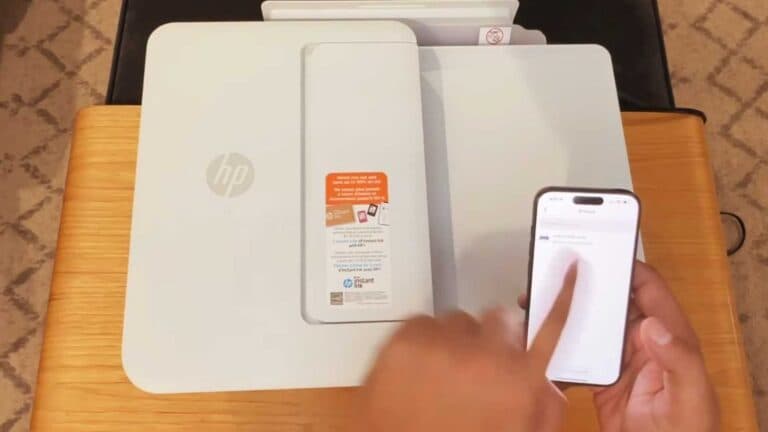
You are trying to scan or copy a document but are unsure how to use your HP DeskJet printer controls. You can complete this task easily by following a few simple steps.
- Open the scanner lid and place your document face-down on the glass, aligning it with the back corner [0:08].
- Close the scanner lid securely to ensure a clear scan [0:19].
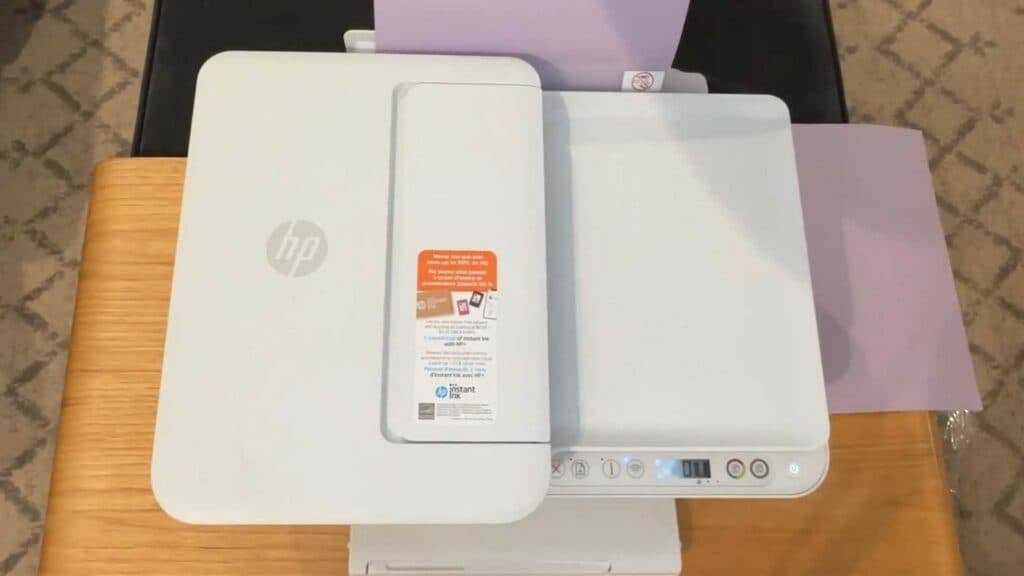
- Press the gray button to make a black-and-white copy, or press the color button to make a color copy [0:23].
- Press your chosen copy button multiple times to select the number of copies you need.
Ninja Tip: Always check your document color before scanning, as printing items on colored paper often causes the ink to bleed or produces dark, muddy results that waste your ink cartridges.
If your printer remains unresponsive after these steps, perform a power cycle by disconnecting the power cord from the back of the printer for 60 seconds before plugging it back in.
Keep Reading