How to Scan a QR Code That Is Already on Your Phone Screen

By Trae Jacobs,

When you buy through our links, we may earn an affiliate commission.
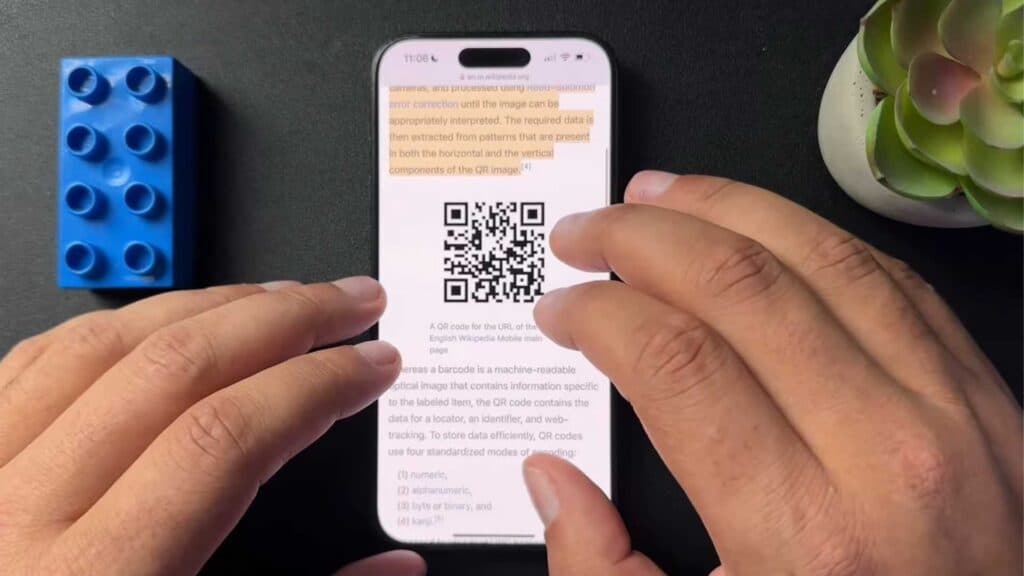
You are looking at a QR code on your phone and need to scan it, but your camera is not available. You can scan it directly from your device using a simple workaround.
- Take a screenshot of the QR code and crop the image so only the code is visible, then save it to your photos. [0:28]
- Go to google.com and tap the colorful camera icon in the search bar to open Google Lens. [0:58]
- Tap the photo icon at the bottom of the screen to select your saved screenshot. [1:09]
- Select the image from your photo library to let Google analyze the QR code and tap the link that appears to navigate to the destination.
Ninja Tip: If you have an iPhone, you can often skip the screenshot method by long-pressing directly on the QR code in your photo gallery, which will reveal a hidden pop-up menu with the link ready to tap.
If you still cannot scan the code, go to Settings > General > Transfer or Reset
Keep Reading


