How to Save and Organize Locations in Google Maps

By Trae Jacobs,

When you buy through our links, we may earn an affiliate commission.
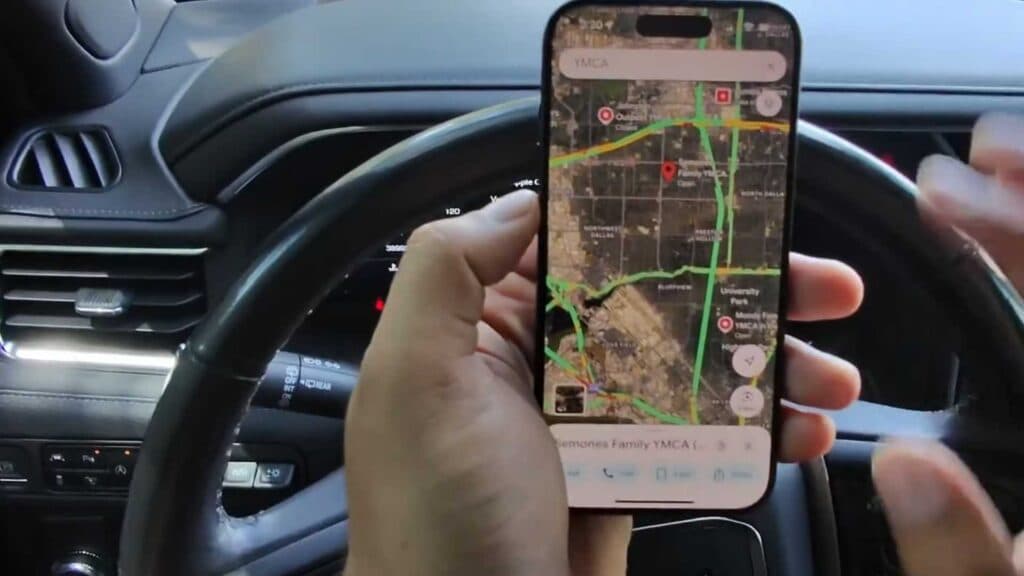
You want to keep specific locations saved in Google Maps so you can access them quickly without searching every time. You can organize these places into custom lists to keep your maps clean and helpful.
- Find the location you want to save, tap the place name, and select the “Save” button [0:26].
- Choose an existing list or create a new one, such as “gyms,” and tap “Create” [0:33].
- To access your saved places later, go to the “Saved” tab (the “U” icon or your profile icon) where your custom lists are displayed [0:52].
- To add more locations to an existing list, search for the place, hit the “Save” button, select your desired list, and tap “Done.”
Ninja Tip: You can change the visibility of your saved lists by tapping the three-dot menu next to a list name; set them to “Private” if you only want them visible to you, or “Shared” if you want to send them to friends.
If you need to clear all your data, go to Settings > Maps history and choose the delete option for your activity.
Keep Reading



