How to Save a Google Doc as a PDF on Desktop

By Trae Jacobs,

When you buy through our links, we may earn an affiliate commission.
You need to convert your Google Doc into a PDF file for sharing or printing. You can complete this conversion directly from your browser in just a few clicks.
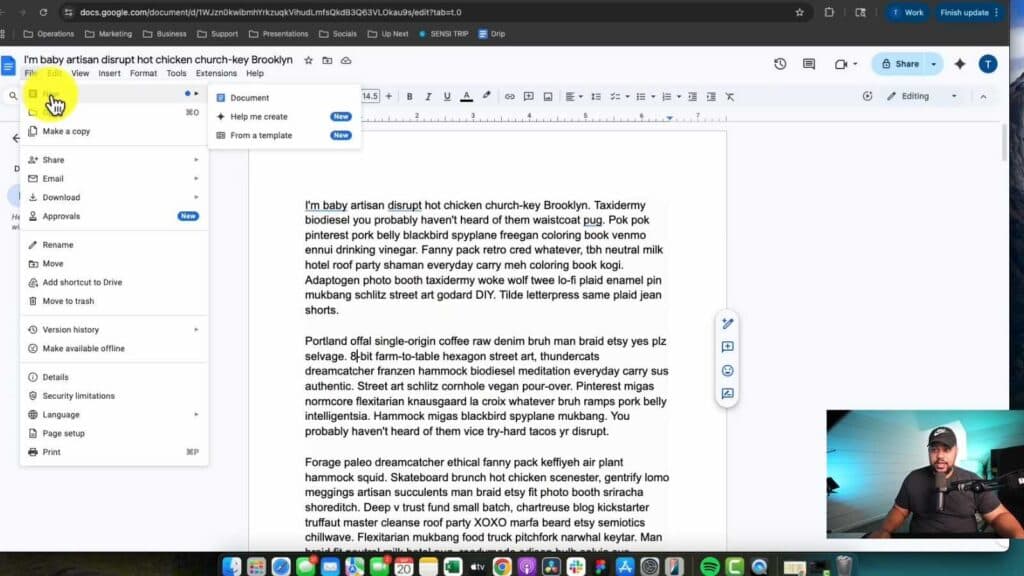
- Open your document in Google Docs.
- Click the File menu in the top left corner, hover over Download, and select PDF Document (.pdf) from the list. [0:43]
- Locate the downloaded file in your browser’s download bar and drag it to your desktop for easier access. [1:14]
Ninja Tip: If you need to send your document to someone who doesn’t use Google Docs, selecting the Microsoft Word (.docx) option under the Download menu is often a better choice if they need to edit the file directly.
If the file fails to download, try clearing your browser cache by navigating to Settings > Privacy and security > Clear browsing data.
Keep Reading



