How to Reverse Image Search with Google Lens to Find Better Shopping Prices

By Trae Jacobs,

When you buy through our links, we may earn an affiliate commission.
You are paying too much for items when cheaper versions exist elsewhere online. You can compare prices instantly by using a simple reverse image search.
- Open your product page in the Google Chrome app, press and hold the product image, and select “Search image with Google“ [0:50].
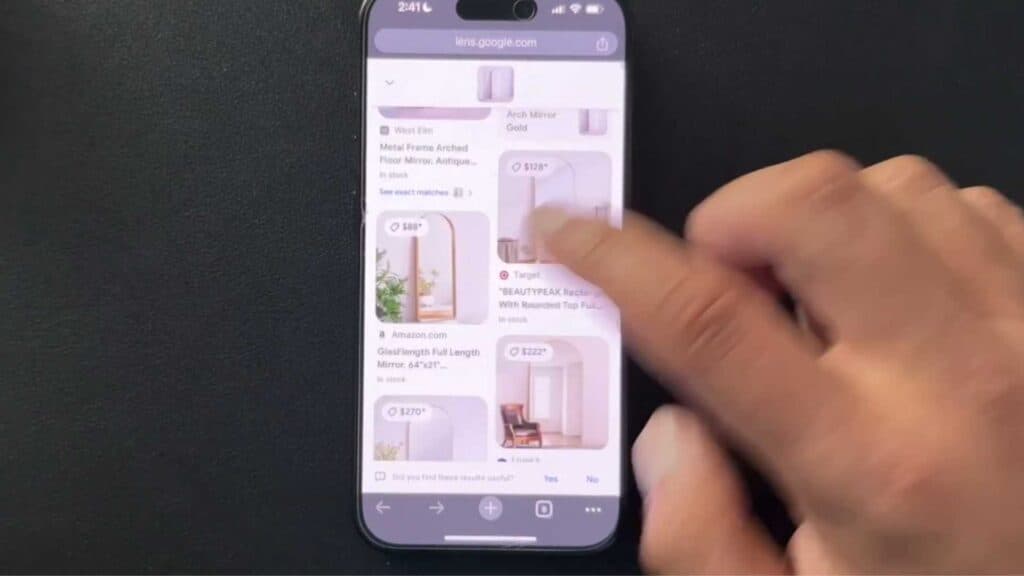
- Review the results shown in Google Lens to find identical or similar items at lower prices [1:12].
- Use the same method in Safari by pressing and holding the image, tapping the share button, and selecting “Search with Google Lens” at the bottom of the menu.
- Tap “View results” to browse the alternative shopping links found by the search.
Ninja Tip: Crop your search area within the Google Lens interface to focus only on the specific item you want, which helps eliminate distracting background objects from your results.
If the app fails to load, clear your browser cache by navigating to Settings > Safari > Clear History and Website Data.
Keep Reading



