How to Restore the Event Timeline in the Ring App

By Trae Jacobs,

When you buy through our links, we may earn an affiliate commission.
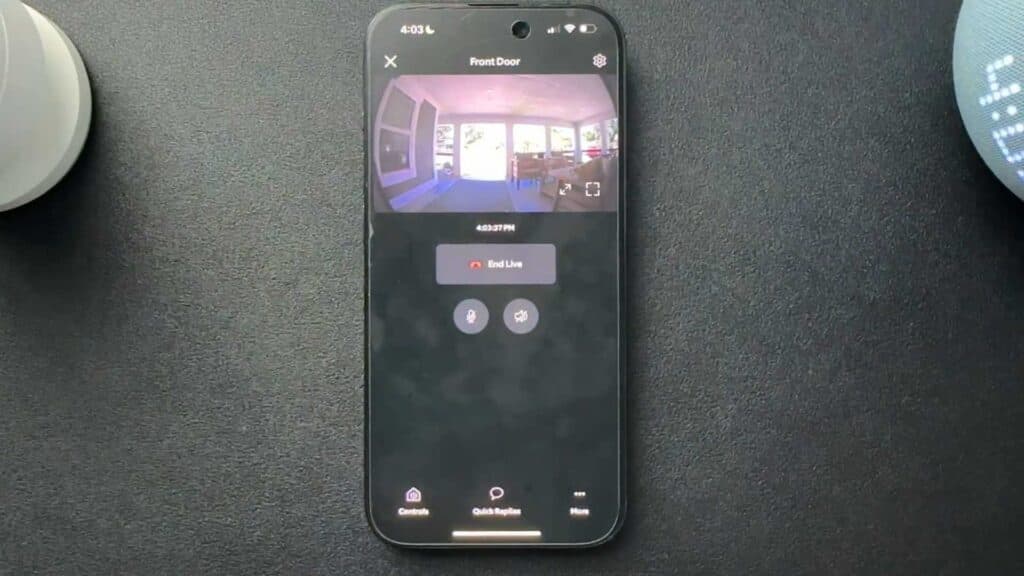
The Ring app does not display your camera timeline at the bottom of the live view screen. You can enable this feature by adjusting your device settings.
- Open the Ring app and select the camera you want to fix [0:37].
- Tap the settings icon in the top right corner, then select Device Settings [0:42].
- Go to Video Settings and toggle the switch for Tap Camera Preview for Live View to the off position [0:51].
- Navigate back to the main dashboard and tap on your camera to see the timeline again.
Ninja Tip: If you still do not see your events, ensure your subscription to Ring Protect is active, as this service is required to save and view your event history.
If the timeline still does not appear, try a factory reset by removing your device in the app and following the re-setup process under Devices > Set Up a Device.
Keep Reading


