How to Restart Your Google Nest Wi-Fi System

By Trae Jacobs,

When you buy through our links, we may earn an affiliate commission.
Your Google Nest Wi-Fi system is experiencing slow speeds or connection issues. You can resolve these problems with a quick network restart.
- Unplug the power cable from your main router or hub, wait 10 seconds, and plug it back in [0:06].
- Open the Google Home app and navigate to the Wi-Fi section [0:43].
- Tap on Network settings [0:48].
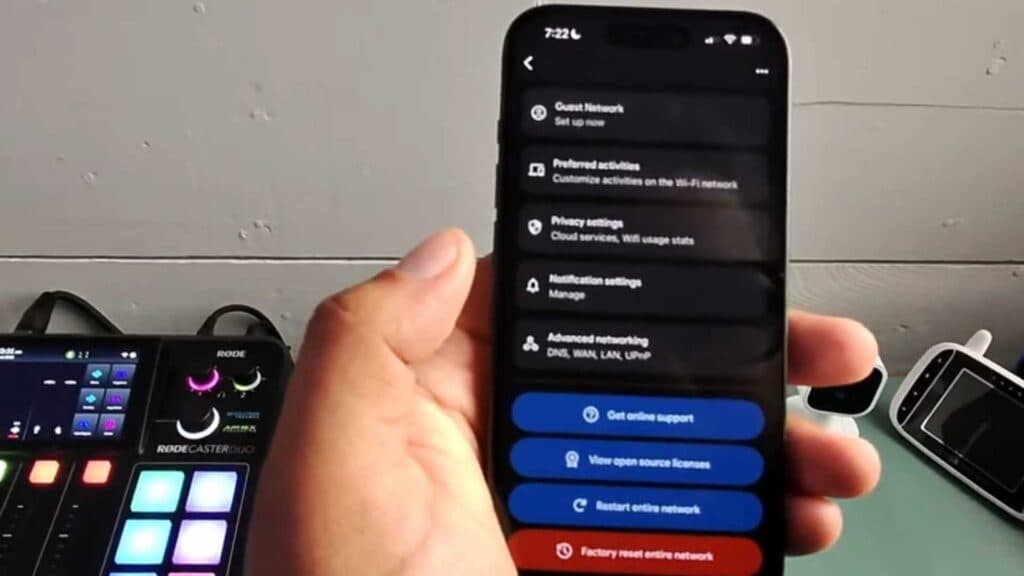
- Scroll down and select Restart entire network to begin the process.
- Confirm the action by tapping Yes and waiting a few minutes for the hardware to power cycle.
Ninja Tip: If your connection remains unstable after a restart, try changing your DNS settings to Google’s public DNS (8.8.8.8) within the app’s advanced networking menu to improve reliability and speed.
To perform a complete factory reset, go to the Google Home app and navigate to Settings > Wi-Fi > Factory reset.
Keep Reading


