How to Reset YouTube Recommendations on Your Smart TV

By Trae Jacobs,

When you buy through our links, we may earn an affiliate commission.
Your YouTube feed displays irrelevant videos that do not match your interests. You can fix this by resetting the app to clear your local data and recommendations.
- Open the YouTube app on your television and navigate to the Settings menu. [0:28]
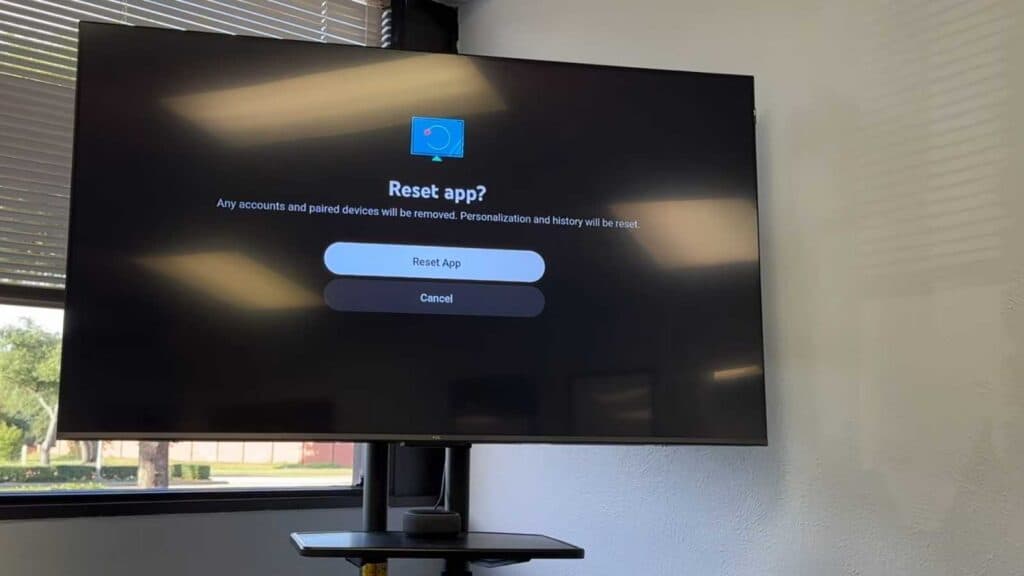
- Scroll down through the list of options until you locate and select the “Reset app” feature. [0:34]
- Confirm the reset to sign out of your account, remove paired devices, and wipe your personalization history.
Ninja Tip: You can also manage your recommendations without a full reset by going to your Google My Activity page on a computer and deleting specific YouTube watch history entries. This allows you to remove
Keep Reading


