How to Reset Your Blink Cameras and Sync Module

By Trae Jacobs,

When you buy through our links, we may earn an affiliate commission.
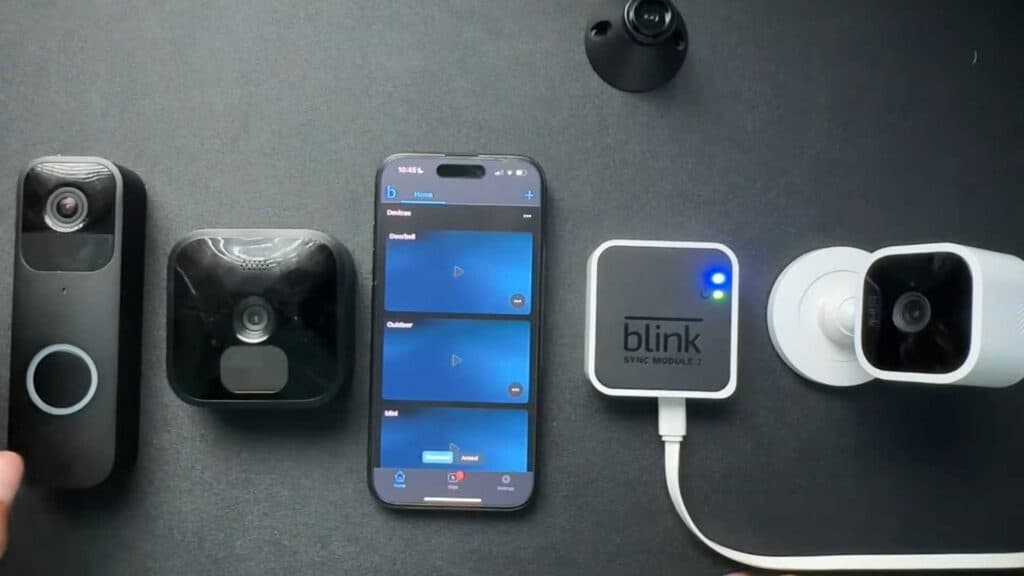
Your Blink devices are not responding or connecting properly to your network. You can fix these connectivity issues by performing a manual reset on your hardware.
- Remove the device from the Blink app by navigating to Device Settings > General Settings > Delete Device [0:30].
- To reset the Blink Mini, press and hold the reset button on the bottom of the unit with a pen or small tool until the lights indicate it has entered setup mode [0:47].
- For the Blink Outdoor camera, remove the back cover, take out one battery, then press and hold the reset button while reinserting the battery until the camera starts blinking [1:29].
- To reset the Blink Video Doorbell, press and hold the reset button on the device until you see the light ring flash [2:23].
- For the Blink Sync Module, locate the reset button on the back or top of the device and hold it until the status light changes to a solid green and flashing blue pattern.
Ninja Tip: Before resetting your hardware, try power cycling your router by unplugging it for 30 seconds to see if a simple reboot resolves your connection issues without needing to reconfigure your cameras.
If these steps do not resolve your issues, contact Blink Support through the Help section within your Blink app.
Keep Reading



