How to Reset Apple AirPods: A Step-by-Step Guide

By Trae Jacobs,

When you buy through our links, we may earn an affiliate commission.
Your Apple AirPods are not connecting to your devices properly. You can fix this by performing a full reset.
- Go to Settings on your iPhone, select Bluetooth, tap the “i” icon next to your AirPods, and choose “Forget This Device” to unlink them [0:20].
- Open the Find My app or go to Settings > Your Apple ID > Devices to remove the AirPods from your account if you are planning to sell or give them away [1:12].
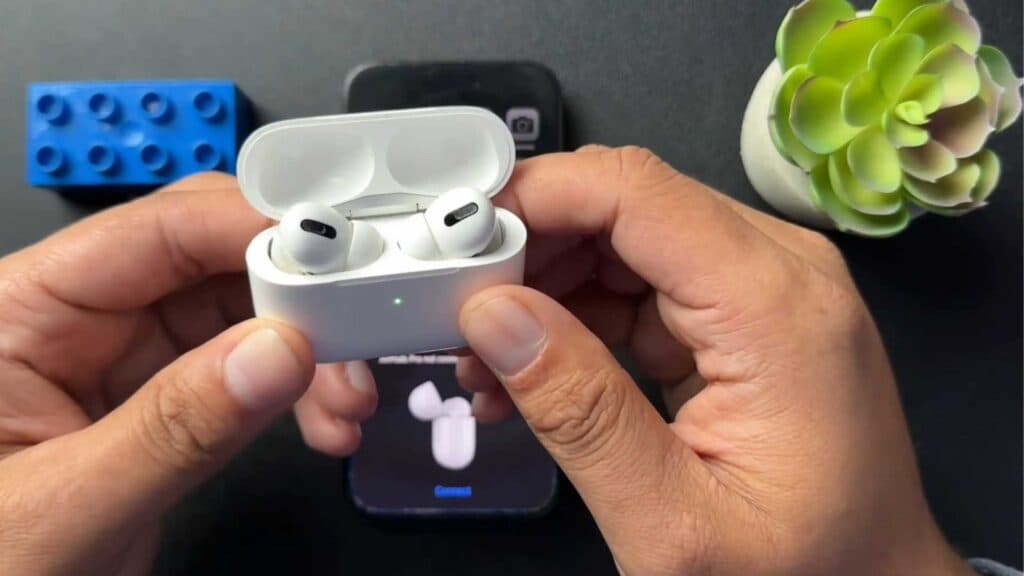
- With the case lid open, press and hold the button on the back of the charging case for 15 seconds until the status light flashes amber and then white.
Ninja Tip: If your AirPods still won’t connect after a reset, clean the gold contact points inside the charging case and on the stems of the earbuds with a dry, lint-free cloth or a soft-bristled brush to ensure a proper connection.
If you still experience connectivity issues, perform a hard reset by going to Settings > General > Transfer or Reset iPhone > Reset > Reset All Settings.
Keep Reading


