How to Reset an HP DeskJet 4100 Series Printer

By Trae Jacobs,

When you buy through our links, we may earn an affiliate commission.
Your HP DeskJet 4100 series printer is not responding or performing correctly. You can resolve these issues by following these reset procedures.
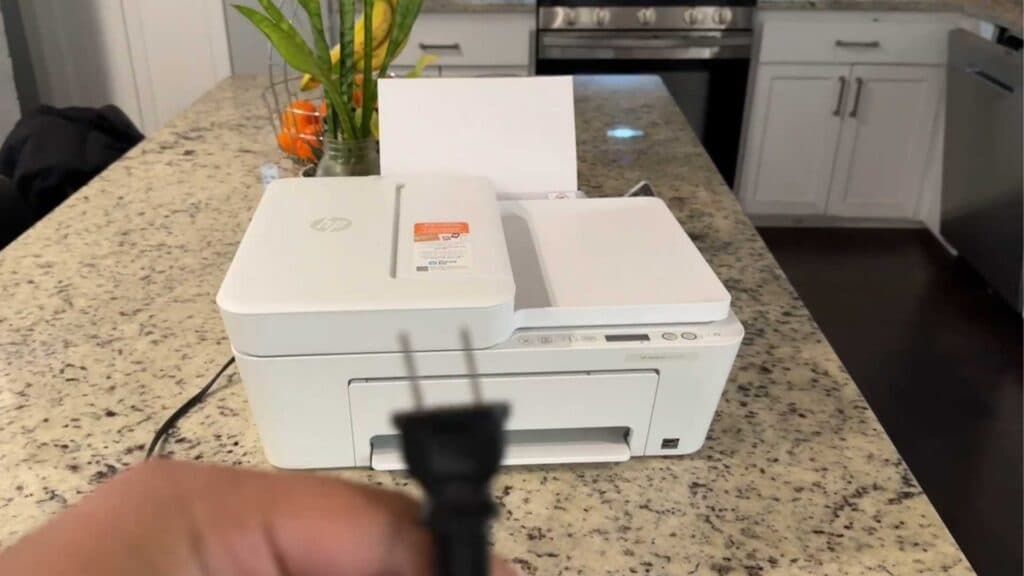
- Unplug the printer from the power source and wait between 60 seconds and two minutes before plugging it back in [0:16].
- Press and hold the Cancel and Wi-Fi buttons simultaneously until the power button begins to blink [0:52].
- Wait for the Wi-Fi button to start blinking, which indicates the printer is in setup mode, then use the HP Smart app to reconnect your device to the Wi-Fi network.
Ninja Tip: Check your router settings to ensure you are connecting the printer to a 2.4GHz Wi-Fi band, as many HP DeskJet models struggle to maintain a connection on 5GHz networks.
If the printer remains unresponsive, perform a full factory reset by following the instructions found in the HP Smart app under Printer Settings > Advanced Settings.
Keep Reading



