How to Remove Yourself as an Admin From a Facebook Page

By Trae Jacobs,

When you buy through our links, we may earn an affiliate commission.
You are currently an admin of a Facebook page you no longer wish to manage. You can remove your own administrative access by following these steps.
- Open your Facebook page and select the page you want to leave [0:15].
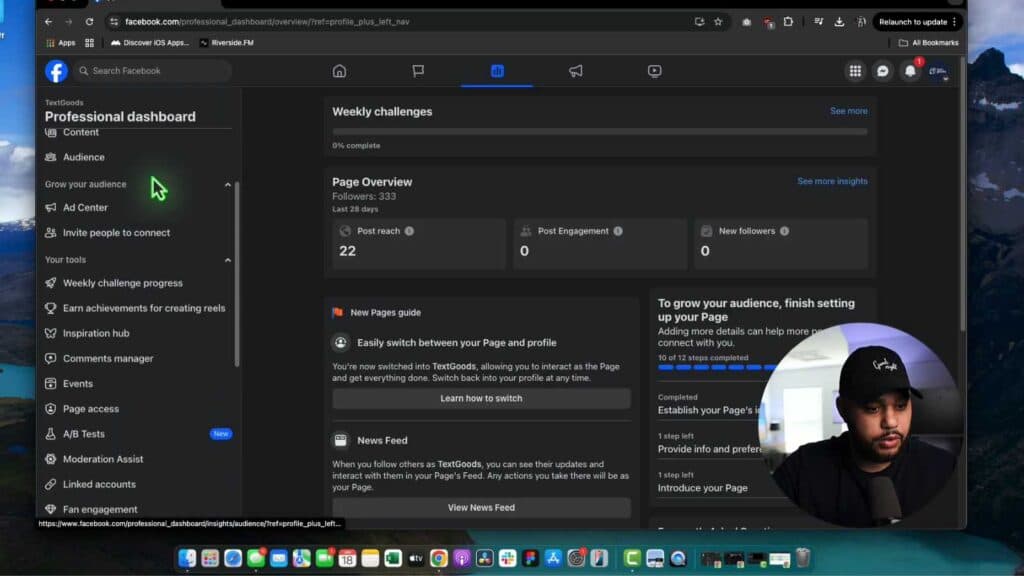
- Click on the Professional Dashboard in the menu [0:33].
- Locate and click on the Page Access section [0:37].
- Find your name in the list, click the three dots next to it, and select “Remove Access” [1:15].
- Enter your password to confirm the change and follow the email verification prompt to finalize the removal.
Ninja Tip: If you are the last admin on the page, consider adding a trusted person as an admin first or deleting the page entirely before removing your own access to avoid leaving the page in an unmanaged state.
If you still have issues, you can permanently delete the page by navigating to Settings > Privacy > Facebook Page Information > Deactivation and Deletion.
Keep Reading



