How to Remove Unwanted Objects from iPhone Photos

By Trae Jacobs,

When you buy through our links, we may earn an affiliate commission.
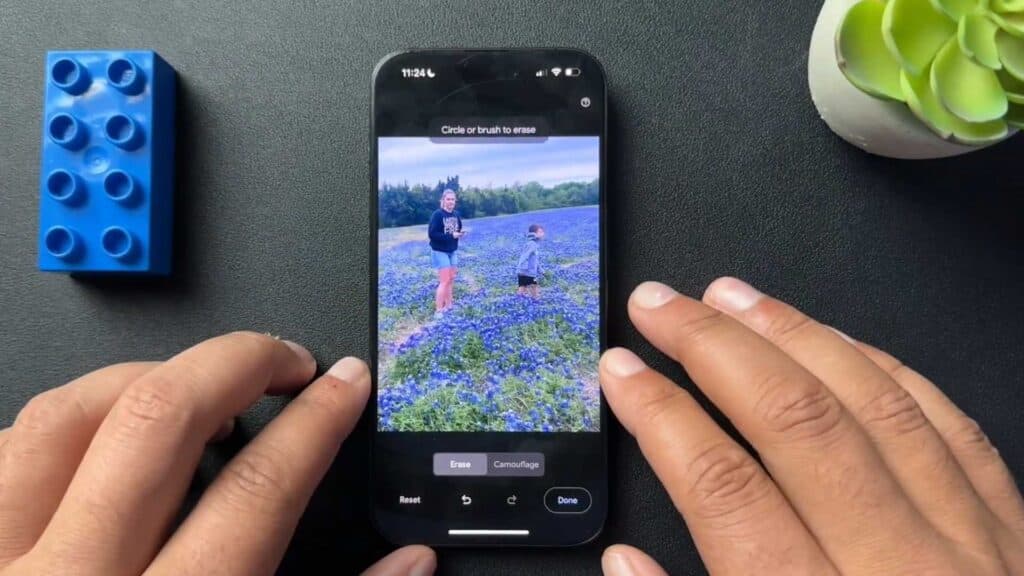
People or background items are obstructing the subject of your photo. You can remove these unwanted objects using the Google Photos app.
- Download Google Photos from the App Store and grant it access to your photo library [0:45].
- Open the photo you want to edit and tap the Edit button [1:08].
- Tap on Tools, then select Magic Eraser [1:15].
- Let the app automatically identify objects to remove and tap Erase All [1:38].
- If the automatic selection misses anything, manually circle the people or objects you want to remove to delete them.
- Save your edited photo to your device.
Ninja Tip: If you have updated your device to iOS 18.1 or later, you can use the native “Clean Up” tool directly in your Apple Photos app by tapping Edit and selecting the Clean Up icon, removing the need for a third-party app.
If you need to restore your phone to its original settings, navigate to Settings > General > Transfer or Reset iPhone > Erase All Content and Settings.
Keep Reading



