How to remove unwanted devices from your mobile hotspot

By Trae Jacobs,

When you buy through our links, we may earn an affiliate commission.
Unwanted devices are currently connected to your mobile hotspot and slowing down your network. You can kick these guests off your connection by updating your hotspot settings.
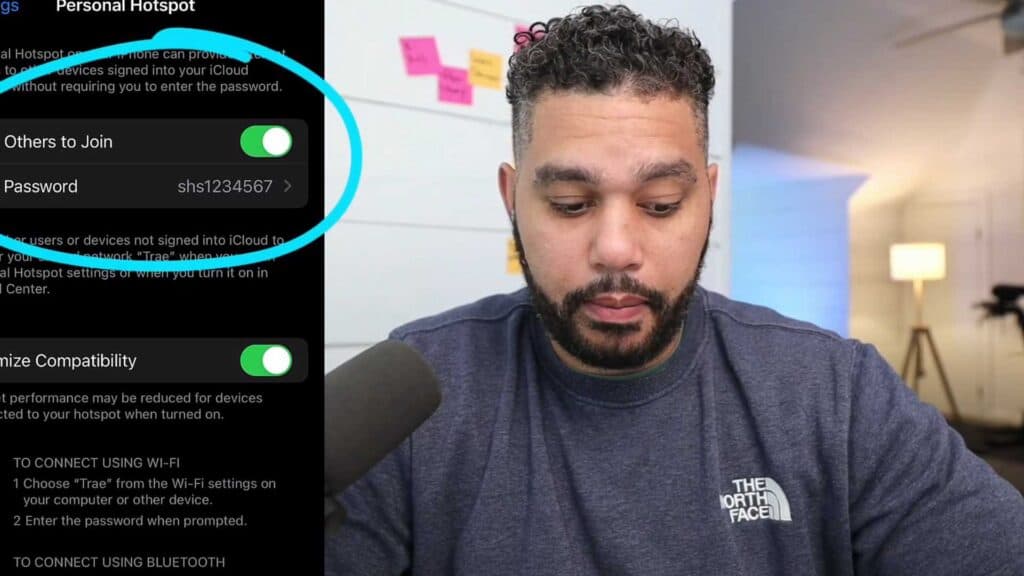
- Open the settings menu on your smartphone [0:18].
- Locate your mobile hotspot options, which are typically found under a tethering or network settings section [0:23].
- Find your current password setting and change it to something new [0:35].
- Save your new password, which automatically disconnects every device currently using your hotspot [0:44].
Ninja Tip: Give your hotspot a unique name that doesn’t identify your phone model or brand, as this makes your network a less obvious target for random scanners.
If your hotspot is still acting up, try a network settings reset by navigating to Settings > General > Transfer or Reset > Reset > Reset Network Settings.
Keep Reading


