How to Remove Saved and Downloaded Podcasts from Apple Podcasts

By Trae Jacobs,

When you buy through our links, we may earn an affiliate commission.
Your Apple Podcasts library is cluttered with saved shows and downloaded episodes taking up storage space on your device. You can clear these out and reclaim your storage by following these steps.
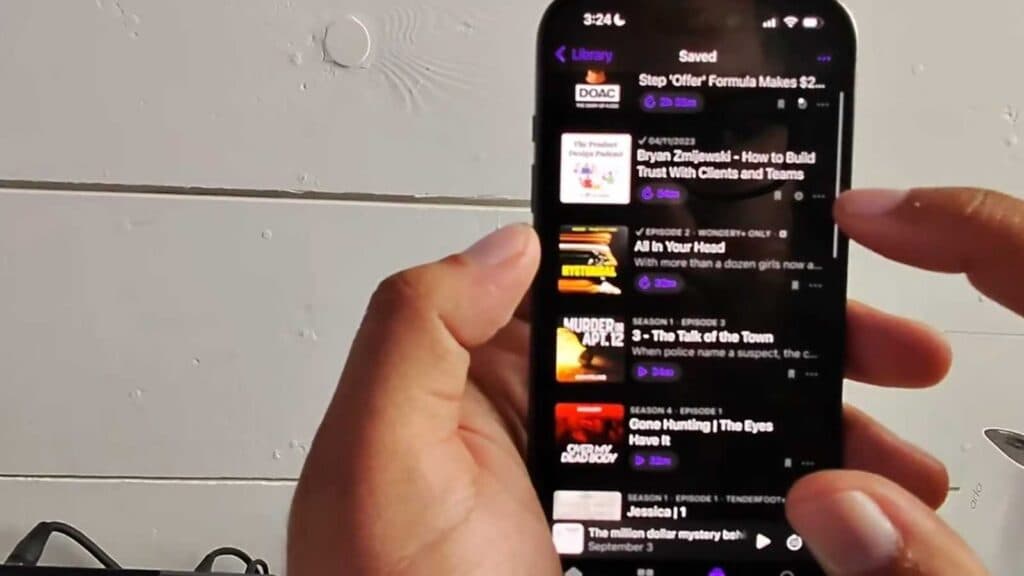
- Open the Apple Podcasts app and navigate to your Library to view your saved and downloaded sections [0:13].
- To remove a saved show, open the specific show, tap the three dots icon, and select Unsave Episode [0:38].
- If you need to clear disk space, open your Downloaded folder, select the show, tap the three dots, and choose Remove Downloads [1:09].
- For individual episodes, scroll to the specific episode, tap the three dots, and select Remove Download.
Ninja Tip: You can prevent your device from filling up automatically by going to Settings > Podcasts and disabling “Download When Saving” to ensure new episodes don’t consume storage without your permission.
If you still experience issues with the app, go to Settings > General > Transfer or Reset iPhone > Reset > Reset All Settings.
Keep Reading



