How to Remove and Add Apps on an LG TV

By Trae Jacobs,

When you buy through our links, we may earn an affiliate commission.
You currently have unwanted apps taking up space on your LG TV home screen. You can delete these apps or reinstall them following these simple steps.
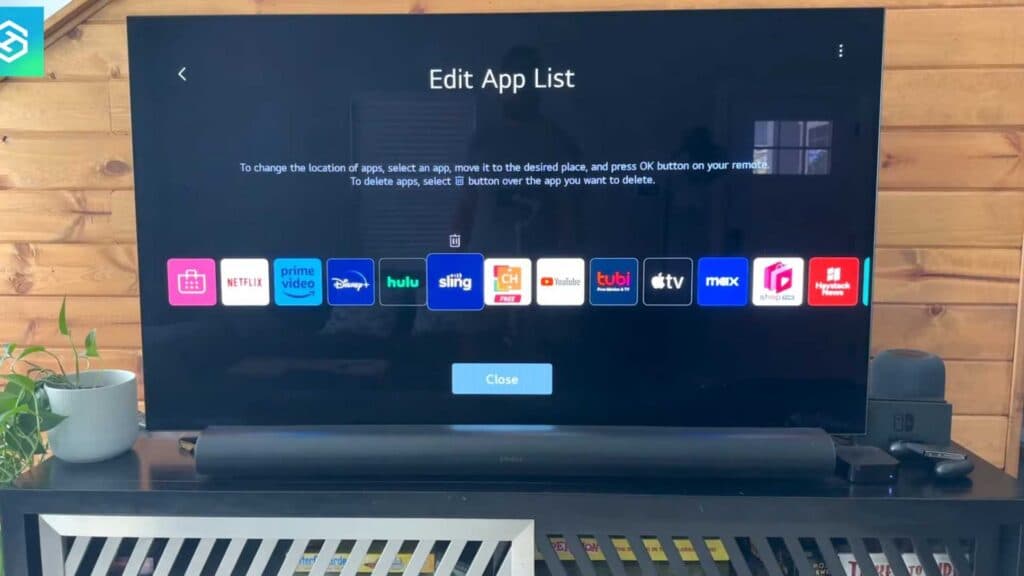
- Navigate to the apps bar at the bottom of your screen, highlight the app you want to remove, and press and hold the select button on your remote [0:21].
- Select the trash icon that appears above the app to delete it and confirm your choice [0:43].
- To add an app back later, open the LG Content Store, search for the app name, and select install.
Ninja Tip: If your app bar feels cluttered, you can also rearrange your app order by selecting the edit mode button on the far right of the app list to move your favorites to the front.
If you still face issues, you can perform a factory reset by going to Settings > All Settings > General > System > Reset to Initial Settings.
Keep Reading


