How to Remove an Unresponsive Device from the SmartThings App

By Trae Jacobs,

When you buy through our links, we may earn an affiliate commission.
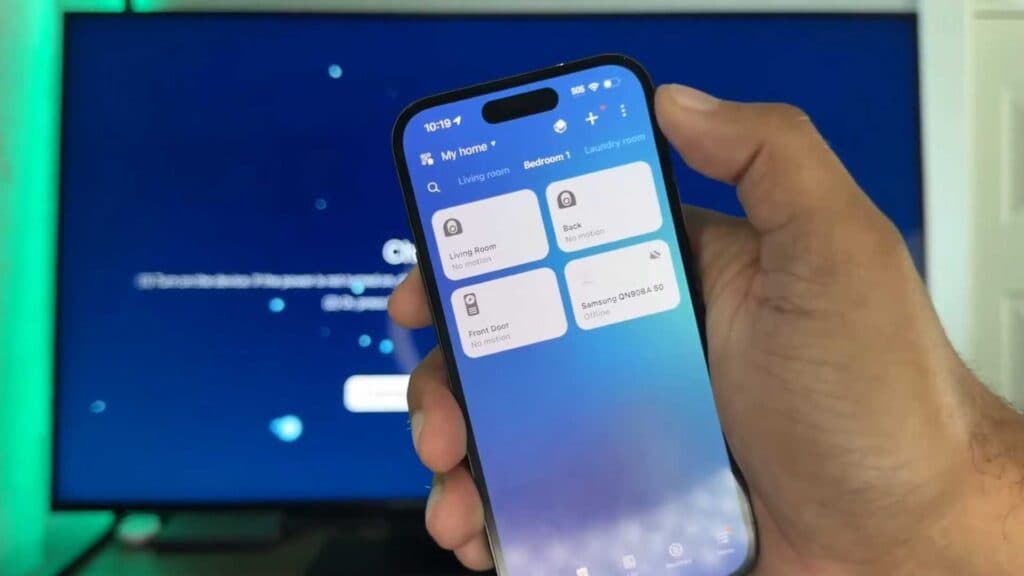
The SmartThings app shows a device that you cannot delete using the standard menu. You can fix this by navigating to the global devices screen to force the removal.
- Go back to the home screen of your SmartThings app [0:46].
- Open the devices tab located on that screen [0:48].
- Tap the three dots in the corner to open the menu [0:51].
- Select the remove device option from the list [0:53].
- Choose the specific device you want to clear from your app and confirm the deletion.
Ninja Tip: If the app still refuses to delete the item, log into the SmartThings Advanced Web Portal at my.smartthings.com to force-delete stubborn devices from your account. This web-based interface often bypasses mobile app glitches that prevent standard removal.
If the device persists, you can perform a factory reset on the device itself by following the instructions in Settings > Support > Device Care.
Keep Reading


