How to Remove an Old Device from Your Apple ID

By Trae Jacobs,

When you buy through our links, we may earn an affiliate commission.
Your Apple ID is linked to old devices you no longer use. You can disconnect these devices from your account to keep everything secure and organized.
- Open the Settings app on your iPhone or iPad and tap on your name at the top of the menu. [0:15]
- Scroll down to see the full list of devices currently connected to your iCloud account. [0:24]
- Select the specific device you want to get rid of and choose the option to remove it from your account. [0:41]
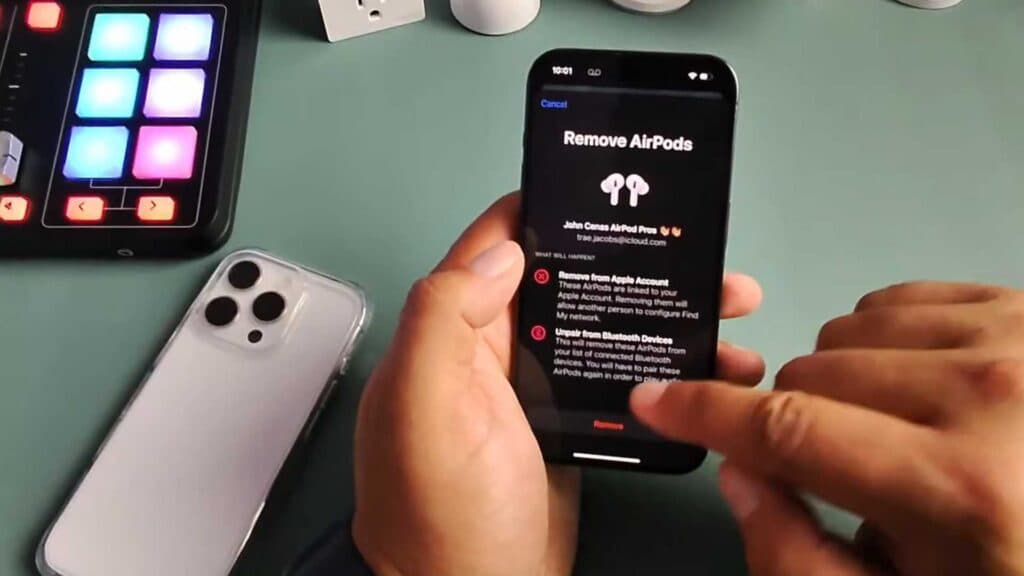
- If you are selling or giving away the device, open the Find My app and locate the device in your list. [0:59]
- Swipe left on the device name to reveal the delete button, then confirm you want to remove it to unpair it from your account.
Ninja Tip:
If you’re selling a device, don’t just remove it from your list; go to Settings > General > Transfer or Reset iPhone > Erase All Content and Settings to completely wipe your personal data before handing it over.
For a complete wipe, use Settings > General > Transfer or Reset iPhone > Erase All Content and Settings.
Keep Reading



