How to Remove a Previous Owner’s Apple ID from AirPods

By Trae Jacobs,

When you buy through our links, we may earn an affiliate commission.
Your AirPods are currently linked to a previous owner’s Apple ID, which prevents you from fully setting them up on your own device. You can resolve this by following the steps below to remove the previous account and clear the ownership settings.
- Connect the AirPods to your iPhone and navigate to Settings > Bluetooth, then tap the blue icon next to your device [0:33]. Tap the name field at the top to delete the current name and hit Done [0:47].
- Scroll to the bottom of the device menu, select Forget This Device, and confirm the action when prompted [0:59].
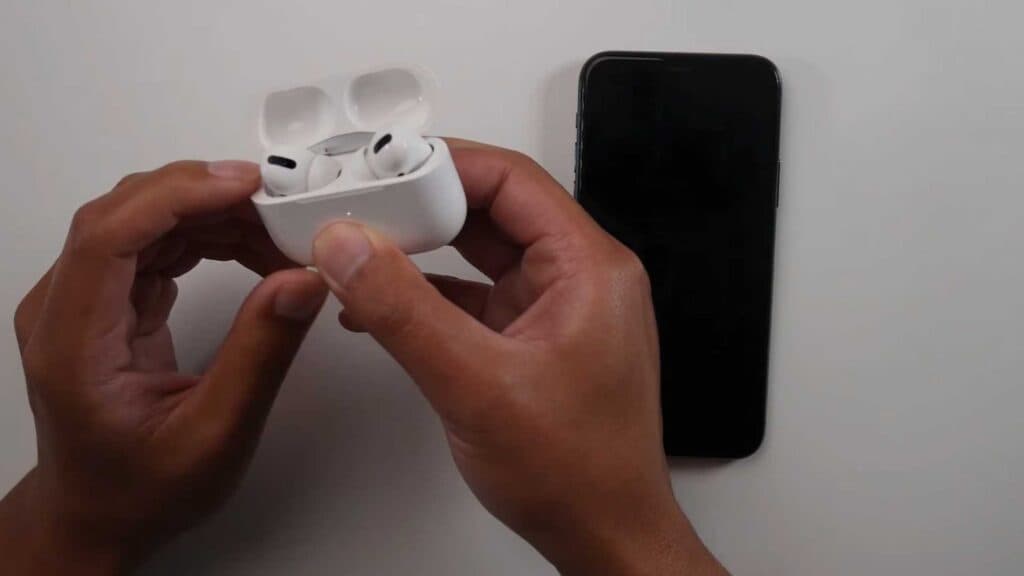
- If you are still having trouble removing the device, open the case and hold the button on the back for 15 seconds until the light flashes from white to a blinking amber [1:36].
- Close the case, then open it again to see the connection prompt and pair the AirPods to your own device account.
Ninja Tip: If the AirPods still won’t pair, ensure your iPhone is running the latest iOS software and that you are signed into your own iCloud account before attempting the connection again.
If the issue persists, you may need to perform a full factory reset by holding the case button until the LED light flashes amber, then following the on-screen setup prompts.
Keep Reading

