How to Remove a Payment Method from Google Wallet

By Trae Jacobs,

When you buy through our links, we may earn an affiliate commission.
Your Google Wallet contains an outdated or unwanted payment card. You can remove it from your account by following these steps.
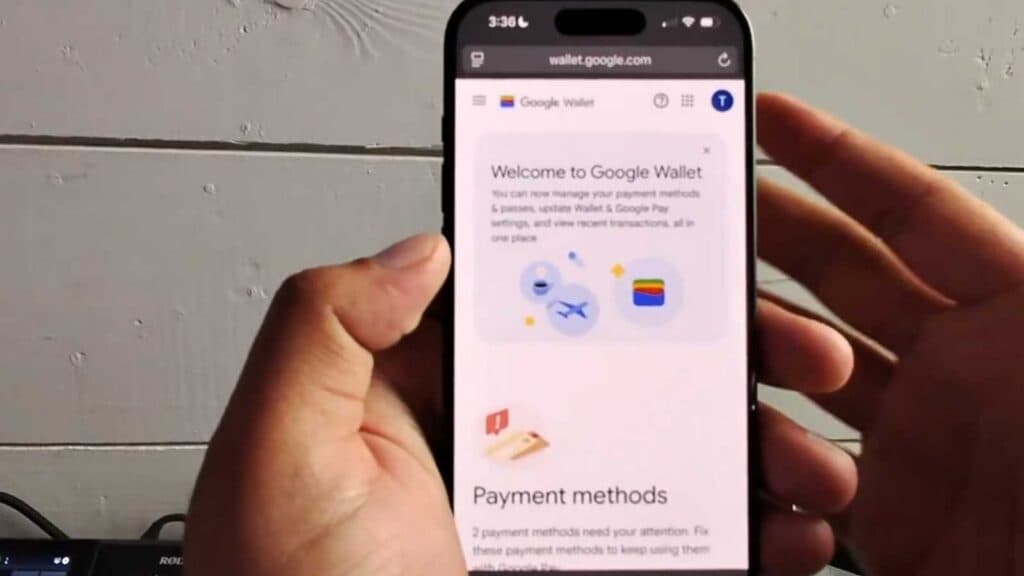
- Open your web browser and go to wallet.google.com [0:12].
- Complete the required account verification process to access your saved payment methods [0:18].
- Select the specific card you want to remove from your wallet [0:26].
- Scroll down to the bottom of the card details and select the “Remove” option [0:30].
- Confirm the removal by clicking “Remove” a second time to delete the card from your account [0:34].
Ninja Tip: If you are having trouble seeing your cards, ensure you are signed into the correct Google account in your browser, as payment methods are tied to specific email addresses rather than the device itself.
If you still see the card in apps after removal, go to Google Play Store > Profile Icon > Payments & subscriptions > Payment methods to ensure it is not synced through your Play billing settings.
Keep Reading



