How to Remove a Google Account from Chrome

By Trae Jacobs,

When you buy through our links, we may earn an affiliate commission.
You have an extra Google account saved in your Chrome browser that you no longer need. You can remove that profile and its associated data by following these steps.
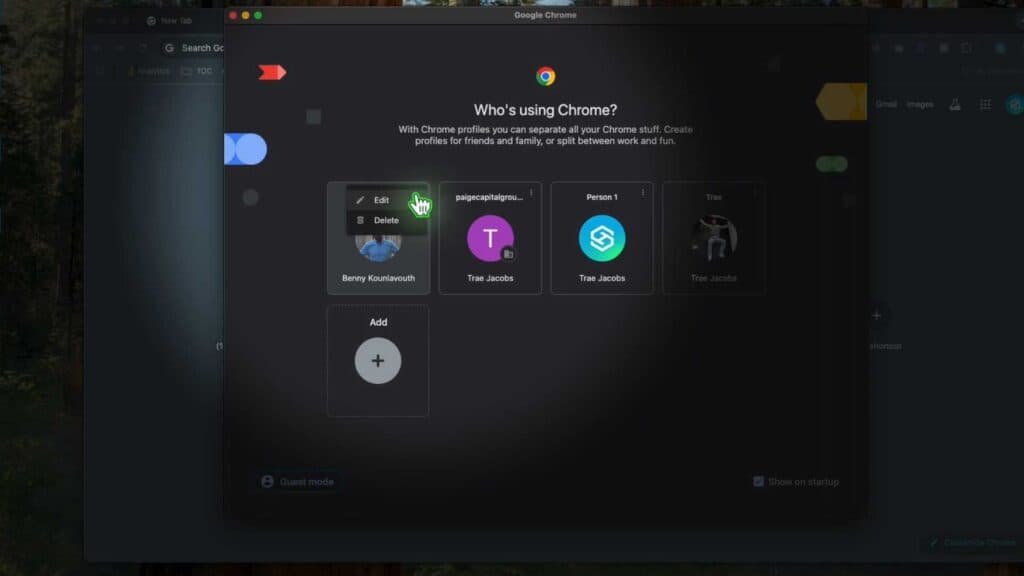
- Open your Chrome browser and click on your profile icon in the top right corner. From the dropdown menu, select the option to manage your Chrome profiles [0:18].
- Locate the specific account you want to remove on the profile management page. Click the three dots icon next to that account name [0:44].
- Select the delete option to remove the account and all associated profile information from your browser.
Ninja Tip: Before deleting your profile, make sure you have synced any important bookmarks or passwords to your primary Google account, as removing the profile will permanently delete that local data.
If you are still having issues with account syncing, you can perform a full browser reset by going to Settings > Reset settings > Restore settings to their original defaults.
Keep Reading



