How to Reconnect a Sonos Speaker to the Sonos App

By Trae Jacobs,

When you buy through our links, we may earn an affiliate commission.
Your Sonos speaker is not showing up in your app and will not play music. You can get your device reconnected and running again by following these steps.
- Open the Sonos app and tap the settings icon [0:23].
- Select the option to add a speaker or component and let the app search for your nearby product [0:27].
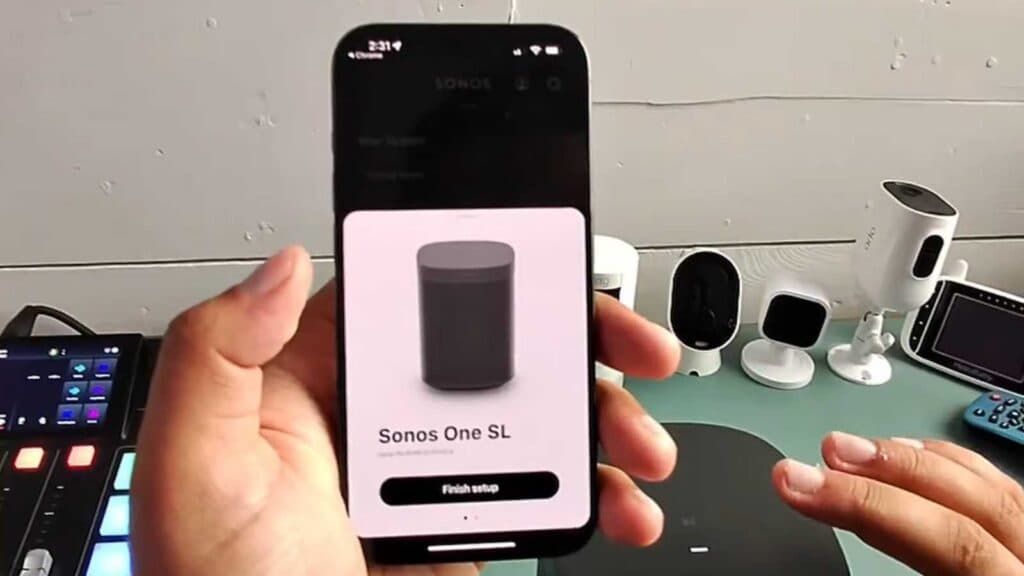
- Once the app finds your speaker, click the button to finish the setup [1:00].
- Follow any prompts to perform a software update for the speaker if the app requires it [1:09].
- Wait for the app to play a sound test to confirm the connection [1:21].
- Confirm that the light on your speaker is flashing white and green, then press the join button located on the back of the device [1:39].
Ninja Tip: If the app still cannot find your speaker, temporarily plug the speaker directly into your router using an Ethernet cable to force a connection, then update your wireless settings once it appears in the app.
If you are still unable to connect, perform a factory reset by unplugging the power cord, holding the Join button while plugging the power back in, and continuing to hold until the light flashes orange and white.
Keep Reading


