How to Rearrange and Organize Apps on Apple TV 4K

By Trae Jacobs,
When you buy through our links, we may earn an affiliate commission.
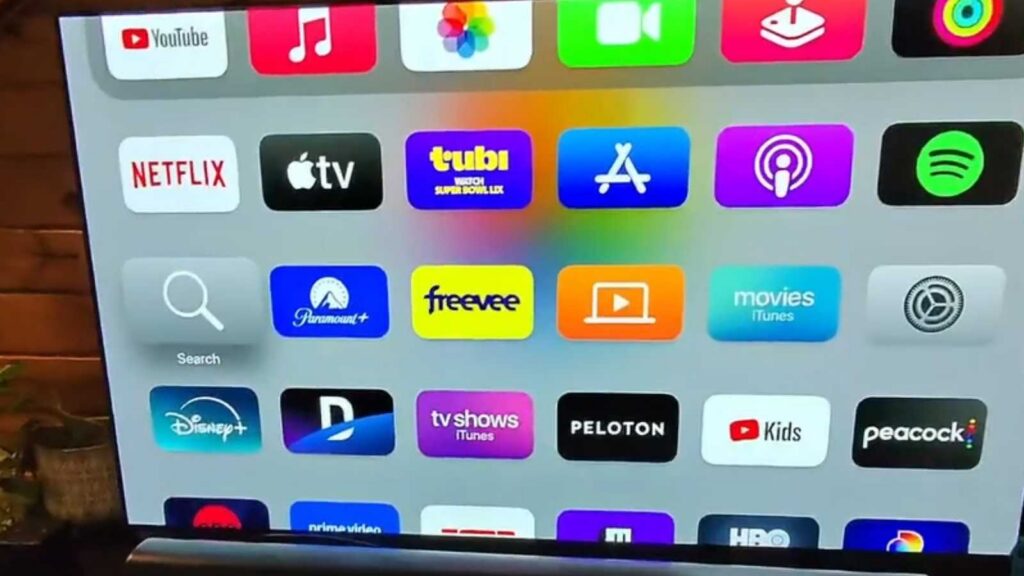
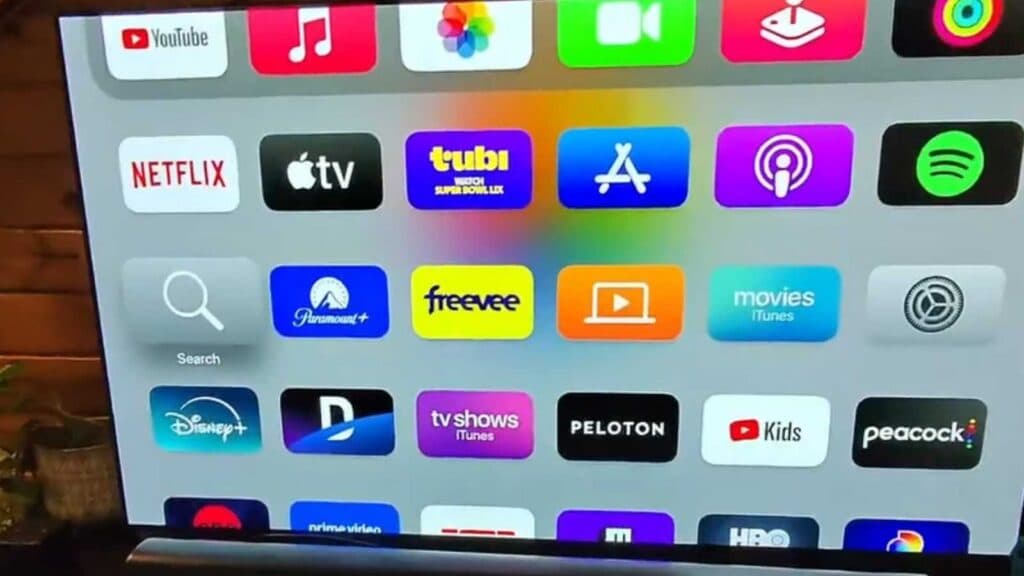
Your apps are currently in a disorganized mess on your Apple TV home screen. You can customize the layout to put your favorite services exactly where you want them.
- Use your remote to navigate to the app you want to move. Press and hold the center button on your remote until the app icon begins to wiggle [0:12].
- Use the directional pad on your remote to slide the app to your preferred location on the screen [0:20].
- Press the center button once more to lock the app into its new position [0:32].
Ninja Tip: You can also group apps into folders by dragging one app icon directly on top of another one; this helps keep your home screen clean if you have many streaming services installed.
If you need to return your home screen to its original state, go to Settings > System > Reset > Reset All Settings.
Keep Reading



