How to Rearrange and Move Apps on Your Roku Home Screen

By Trae Jacobs,
When you buy through our links, we may earn an affiliate commission.
Your apps are out of order on your Roku home screen. You can quickly reorganize your channel layout to put your favorite services at the top.
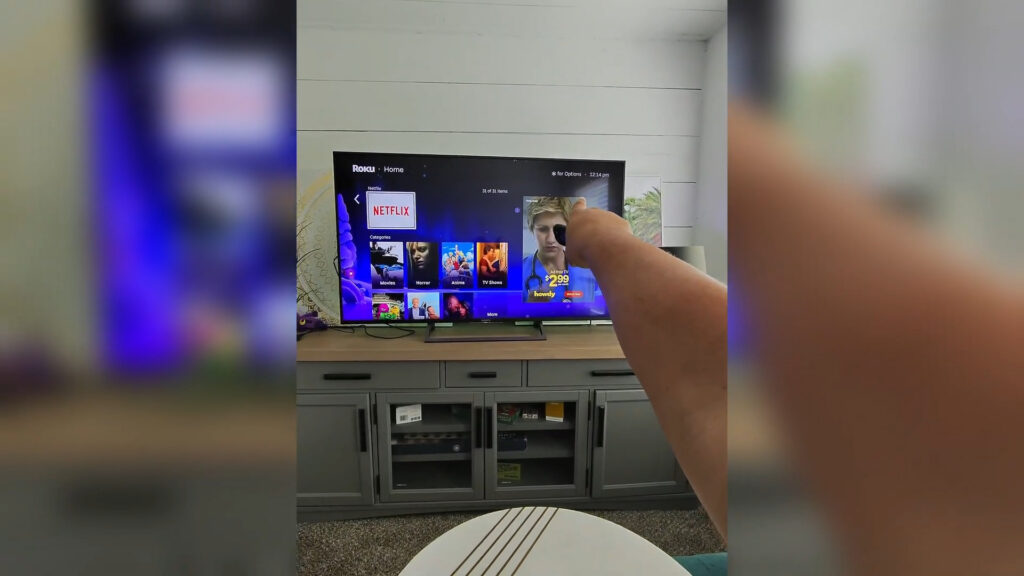
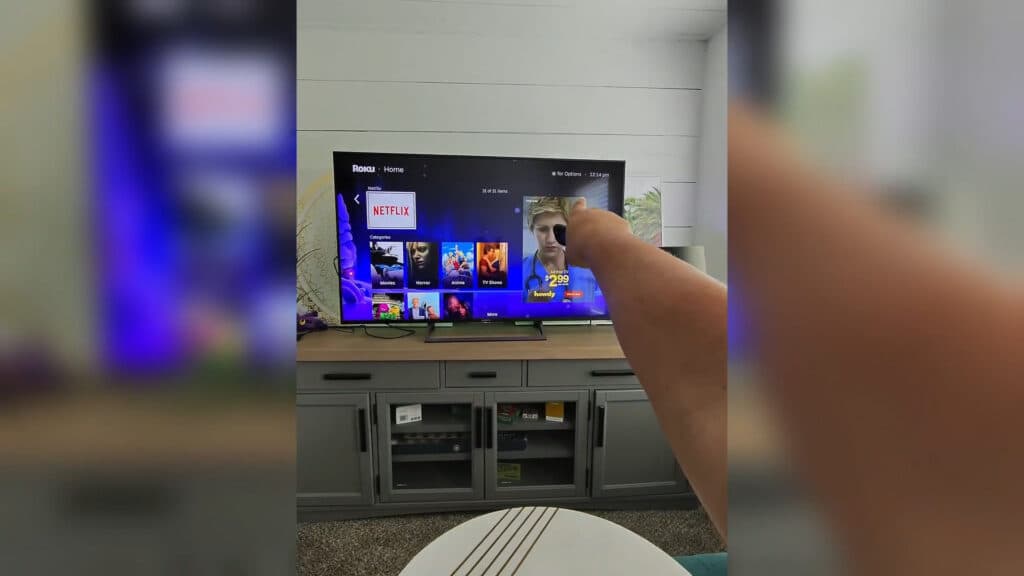
- Navigate to the app you want to move on your Roku home screen [0:16].
- Press the Star (*) button on your remote to open the options menu [0:24].
- Select the “Move app” option from the list [0:38].
- Use the directional pad on your remote to move the app to your preferred spot, then press OK to lock it in place.
Ninja Tip: You can also use this same Star button menu to quickly remove unwanted channels without needing to navigate into the full settings menu. This saves time if you are cleaning up your home screen and deleting multiple apps at once.
If you encounter persistent issues with your home screen layout, a factory reset can be performed via Settings > System > Advanced system settings > Factory reset.
Keep Reading



