How to Quickly Enable Silent Mode on Your iPhone

By Trae Jacobs,

When you buy through our links, we may earn an affiliate commission.
Your iPhone rings during calls and notifications at times when you need it to be quiet. You can easily enable silent mode to stop these sounds.
- If you haven’t remapped your action button, try long-pressing it to toggle silent mode on or off. [0:15]
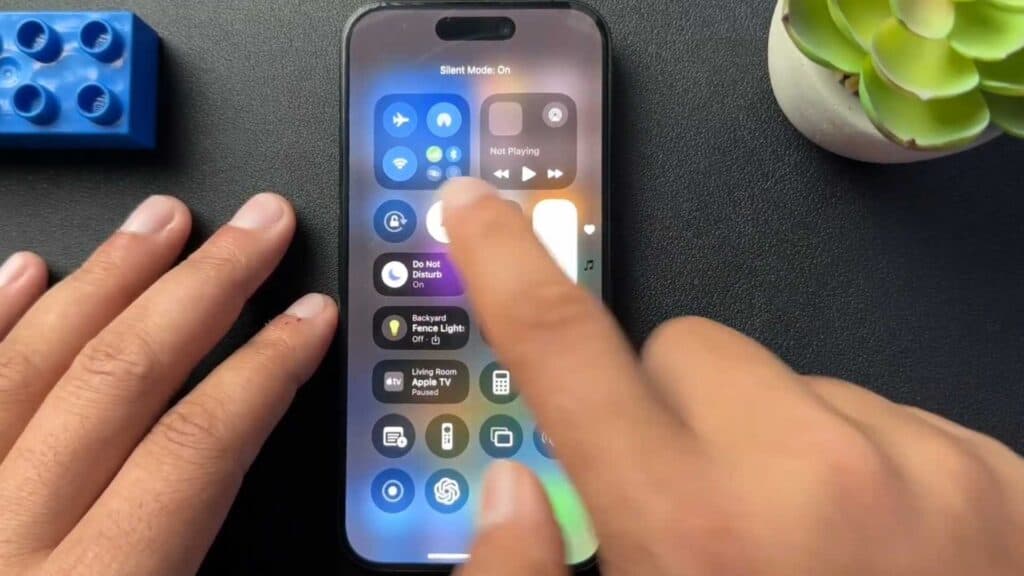
- Swipe down from the top right of your screen to open the Control Center and tap the bell icon to silence your notifications. [0:27]
- Open your Settings app, scroll down to Sounds & Haptics, and tap the silent mode toggle at the top of the menu.
Ninja Tip: If you want to keep your phone silent but still allow important calls to get through, use the “Focus” feature in your settings to create a custom filter for specific contacts.
If you find your device is ignoring your sound settings, check for software updates by going to Settings > General > Software Update.
Keep Reading



