How to Print Google Slides With Speaker Notes Included

By Trae Jacobs,
When you buy through our links, we may earn an affiliate commission.
Your printed Google Slides presentation currently displays only the slide images without your speaker notes. You can adjust your print settings to include these notes on the page.
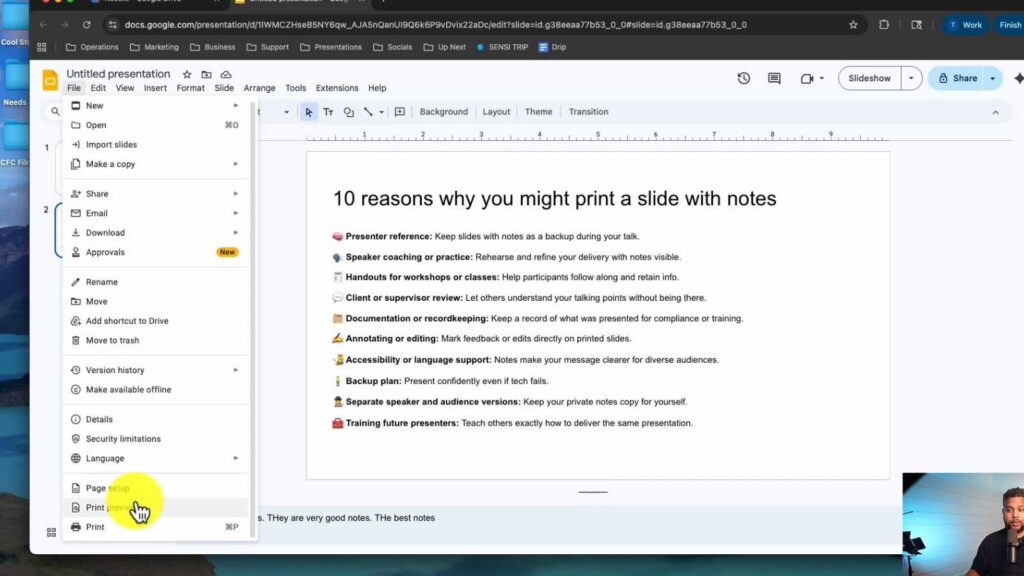
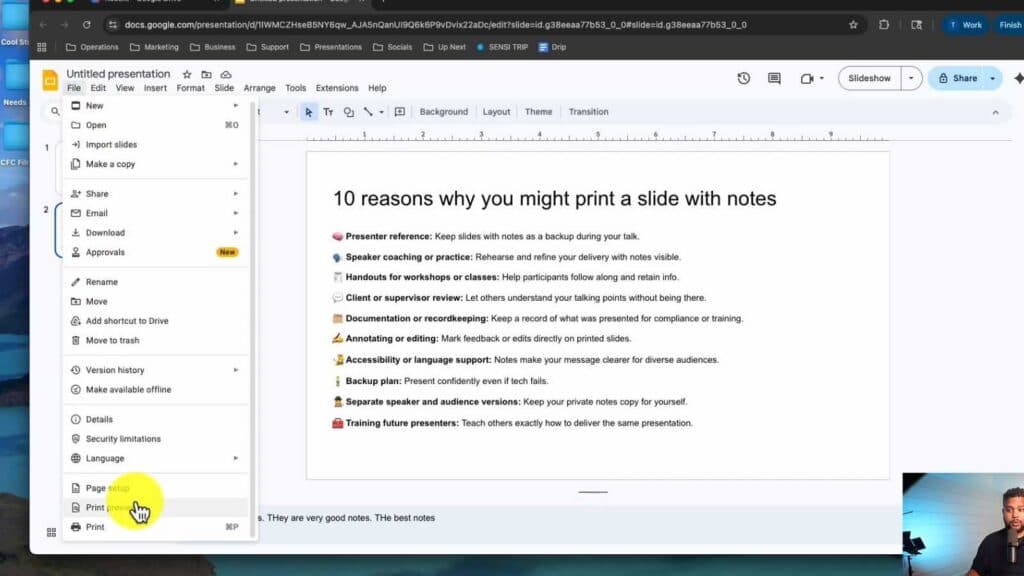
- Open your presentation in Google Slides and click on File in the top menu.
- Select Print preview from the dropdown list to open the presentation viewer [0:29].
- Click the dropdown menu at the top of the preview window and change the setting from “1 slide without notes” to “1 slide with notes” [0:37].
- Verify that the slide appears with your notes printed underneath, then click the Print button to finalize your document.
Ninja Tip: If you need to save paper, choose the “Handout” option in the print preview menu to print multiple slides on a single page, which also leaves space for your manual annotations.
If you experience persistent formatting issues, clear your browser cache by navigating to your browser’s Privacy and security settings or resetting your browser to its default state.
Keep Reading



