How to Print Documents and Photos from Your iPhone

By Trae Jacobs,

When you buy through our links, we may earn an affiliate commission.
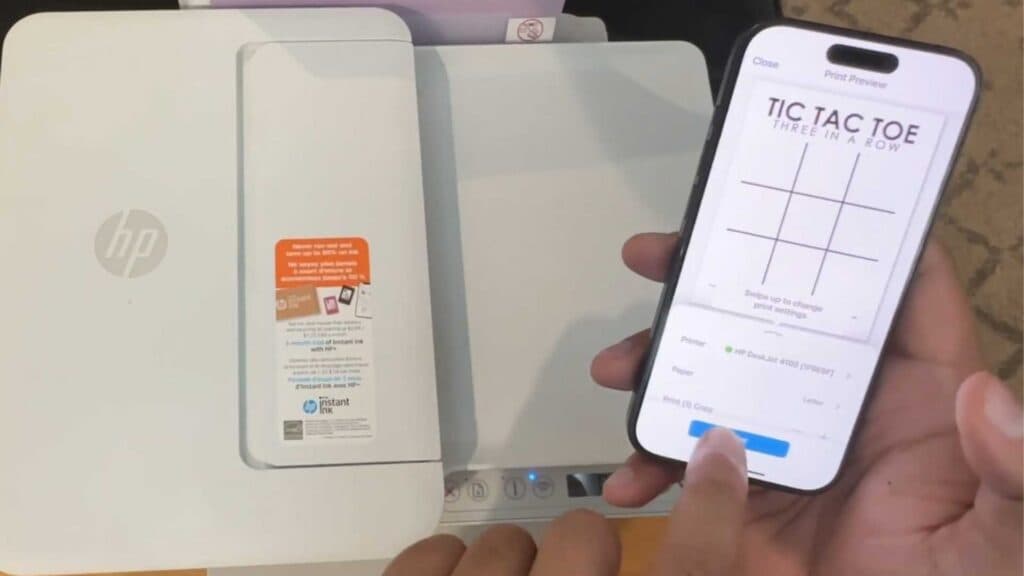
Your iPhone is not currently communicating with your printer. You can follow these simple steps to send your documents and images directly to the print tray.
- Open the image or document you want to print and long-press the item to bring up the menu. [0:30]
- Tap the Share button to see your available options. [0:33]
- Scroll down and select the Print option, or choose “Print with HP Smart” if you are using an HP printer. [0:41]
- Verify your printer is selected at the top of the screen, adjust your settings like the number of copies or color preferences, and tap Print.
Ninja Tip: If your printer still doesn’t show up in the list, double-check that both your iPhone and your printer are connected to the exact same Wi-Fi network. Often, a simple power cycle of both your router and the printer will resolve connectivity conflicts.
Closing: If you continue to have connection issues, you can reset your network settings by going to Settings > General > Transfer or Reset iPhone > Reset > Reset Network Settings.
Keep Reading



