How to Post to Your Instagram Story From a Desktop Computer

By Trae Jacobs,

When you buy through our links, we may earn an affiliate commission.
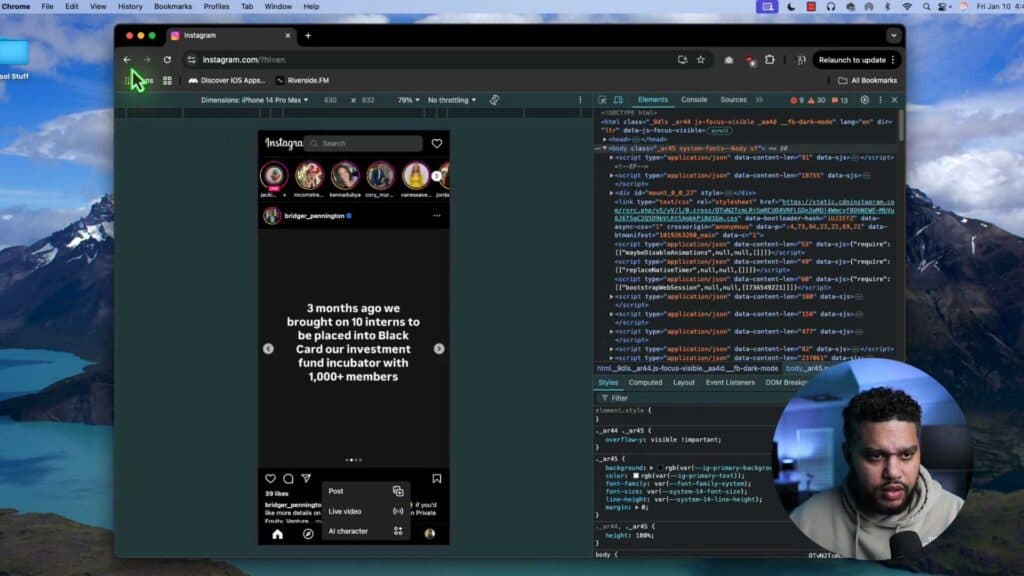
You are unable to upload files directly to your Instagram story from the desktop website. You can bypass this limitation by using your browser’s developer tools to emulate a mobile device.
- Open your browser to Instagram and click the three-dot menu icon in the top right corner, then select ‘More tools’ and ‘Developer tools‘ [0:46].
- Click the ‘Toggle device emulation’ icon that looks like a phone and laptop to enter responsive design mode [1:05].
- Select a mobile device like the iPhone 14 Pro Max from the device dropdown menu [1:15].
- Refresh your browser page so the website renders in its mobile format [1:22].
- Click the plus sign on the screen, select ‘Story,’ and upload your file or video to finish posting.
Ninja Tip: You can also use the ‘Desktop App’ version of Instagram available in the Microsoft Store or Mac App Store if you prefer a native interface that supports story uploads without needing to use developer tools.
If you encounter persistent issues with the website display, clear your browser cache and cookies by going to your browser’s Settings > Privacy and security > Clear browsing data.
Keep Reading



