How to Permanently Delete Your Twitter or X Account

By Trae Jacobs,

When you buy through our links, we may earn an affiliate commission.
Your Twitter or X account is currently active, and you want to remove it. Follow these steps to permanently deactivate and delete your profile.
- Open the Twitter or X app and select your profile icon in the upper left corner [0:09].
- Scroll down to select Settings and privacy [0:16].
- Tap on the Your account section to manage your data and access [0:20].
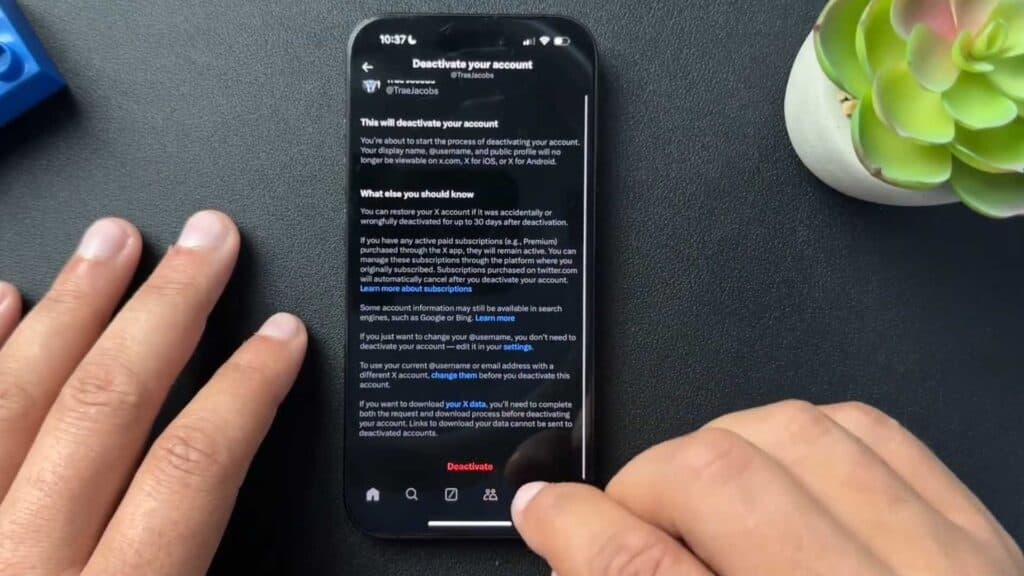
- Select Deactivate your account at the bottom of the menu [0:24].
- Review the information regarding deactivation, then tap the red Deactivate button [0:34].
- Confirm your choice by entering your password and tapping Deactivate to shut down the account.
Ninja Tip: Remember that X keeps your account data for 30 days after deactivation; if you log in during this period, the cancellation process stops and your account will be restored.
For a final reset of all connected third-party apps, go to Settings and privacy > Security and account access > Apps and sessions > Connected apps.
Keep Reading




