How to Permanently Delete Your Snapchat Account

By Trae Jacobs,

When you buy through our links, we may earn an affiliate commission.
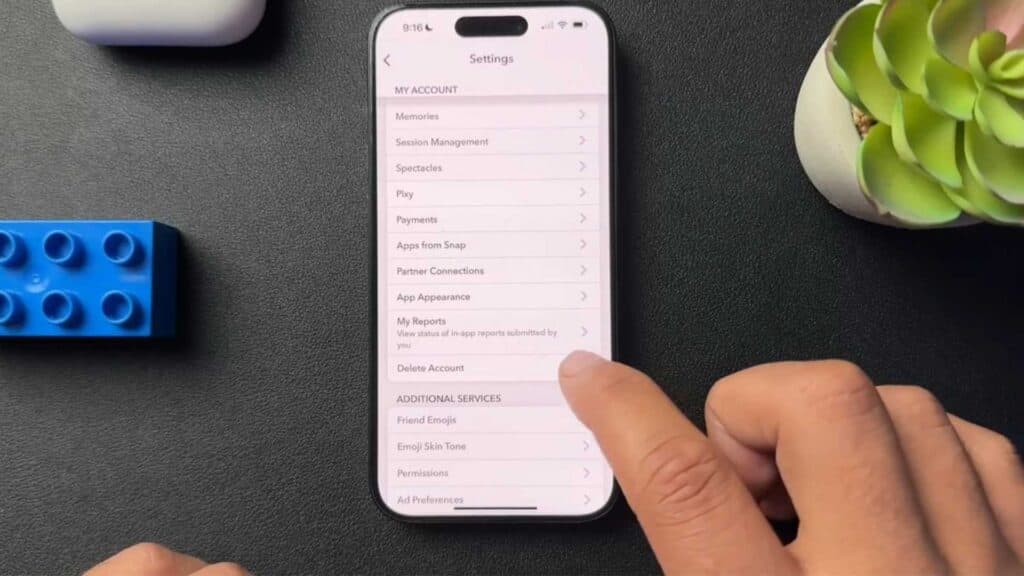
You are ready to remove your Snapchat account and want to ensure it is gone for good. You can complete this process directly through the app settings in a few simple steps.
- Open the Snapchat app on your device and tap your profile icon in the upper left corner [0:19].
- Tap the gear icon in the top right corner to open your Settings [0:26].
- Scroll down to find the “My Account” section, then select “Delete Account” [0:36].
- Follow the prompts on the Snapchat portal screen to enter your username and password, then finalize your request.
Ninja Tip: Remember that your account is only deactivated for the first 30 days; if you log in during this window, the deletion request will be canceled and your account will reactivate automatically. To ensure permanent removal, you must stay completely logged out of the app for that full 30-day period.
If you want to clear your local data before leaving, uninstall the app from your phone’s main settings menu.
Keep Reading

